
First identify the USB failure pattern
The fastest way to avoid replacing the wrong part is to define exactly what fails. Dell's current USB troubleshooting guidance starts with simple isolation: try another USB port, test the device on another computer and inspect the port and cable for damage.
One device fails everywhere
The USB device, cable or its own driver becomes more likely than the PC's port.
One port fails with every device
The individual connector, solder joints, internal header or local port circuitry needs attention.
All ports fail
Windows, chipset/USB controllers, BIOS settings, power management or a wider motherboard issue may be involved.
Connects and disconnects
Check cable movement, loose sockets, power demand, drivers and whether the port is physically damaged.
Physical damage versus a Windows or driver fault
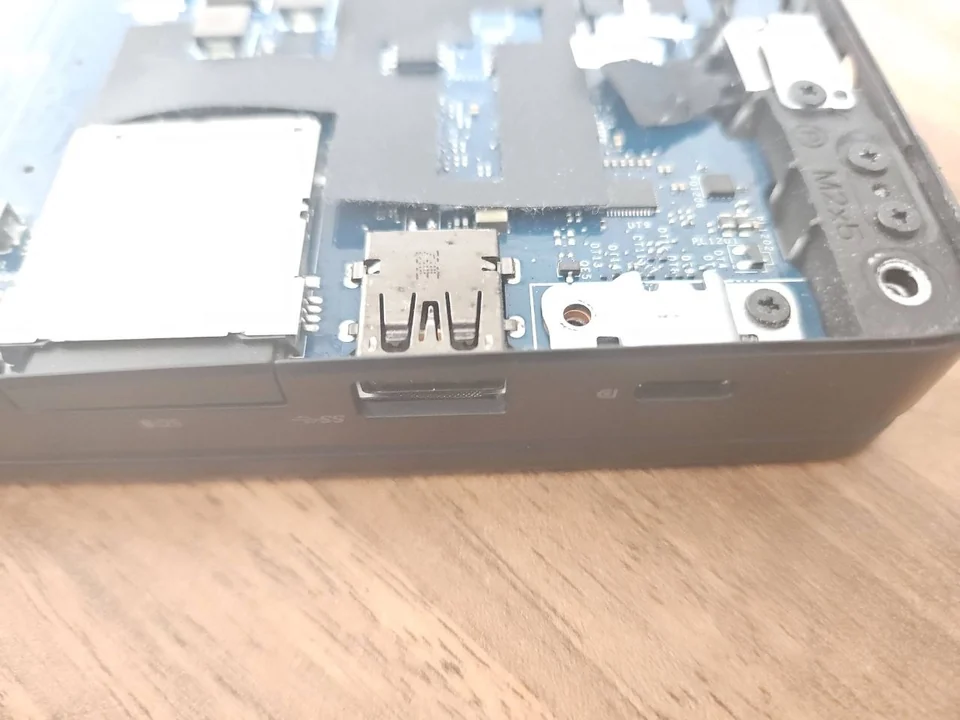
A physically damaged port often gives mechanical clues. The plug may feel unusually loose, the centre tongue can be broken, pins may be bent, the socket may have been pushed into the case, or the device may connect only when held at an angle. Liquid or impact damage can also affect the circuit around the connector.
Software faults tend to behave differently. The socket can look normal but Windows may show “USB device not recognized”, a Device Manager warning, intermittent detection or a controller error. A BIOS setting or chipset problem can affect multiple ports at once.
Do not force a bent plug into a damaged port. A shorted connector can create a larger motherboard fault. If the port becomes unusually hot, smells burnt or shows visible scorching, stop using it.
What common USB errors can mean
Dell lists several common USB symptoms and messages, including “USB Device Not Recognized”, “Power Surge on the USB Port”, “Device Descriptor Request Failed” and Code 10 errors. These are clues, not final diagnoses.
| Message or symptom | Areas to check |
|---|---|
| USB Device Not Recognized | Device, cable, port, driver, controller |
| Device Descriptor Request Failed | Device communication, cable, power, controller |
| Power Surge on USB Port | Device power demand, short, damaged device or port |
| Code 10 / cannot start | Driver, controller, device or hardware conflict |
| Slow transfer speed | Port capability, cable, device, driver or hub |
| Connect/disconnect loop | Loose connector, cable, power or driver instability |
Can Windows power settings make USB ports appear dead?
Yes. Windows can power-manage USB controllers and hubs, especially on laptops. Dell's USB troubleshooting guidance includes checking USB power management and selective suspend when ports work intermittently or stop responding after sleep.
Do not disable every power-saving feature as a permanent first response. First prove that the problem follows sleep or idle behaviour. If the port is physically damaged or fails before Windows loads, changing a Windows setting will not repair it.
If the USB fault appears only after sleep or resume, see our computer will not wake from sleep guide before treating the port as physically damaged.
Drivers, firmware and Device Manager checks
Open Device Manager and look under Universal Serial Bus controllers for warning icons or a device that repeatedly disappears when the fault occurs. A controller or device error can justify reinstalling the affected device or using the computer manufacturer's supported chipset, USB and firmware updates.
Avoid generic “driver updater” tools. Use Windows Update or the computer/motherboard manufacturer's support page. Dell's current guidance also recommends checking BIOS configuration and manufacturer diagnostics where available.
If USB ports work in BIOS diagnostics or another operating environment but not in normal Windows, the software path becomes more likely. If a port has no power or detection outside Windows as well, hardware moves higher on the list.
USB-C shape does not guarantee every USB-C feature
USB-C describes the connector shape, but the supported data speed, charging, DisplayPort video and Thunderbolt capabilities depend on the exact laptop, motherboard and port. A device that works on one USB-C socket may not have the same function on another.
Before treating a USB-C port as faulty, check the device manual and the symbols beside the port. Dell notes that port markings and product specifications are more reliable than assumptions based on connector colour or shape.
Safe checks before paying for USB repair
- Test the accessory elsewhere. Use another computer if possible.
- Try a second known-good USB device. This separates one failed accessory from a dead port.
- Try another port. Note whether front, rear, left or right ports behave differently.
- Inspect without poking. Look for bent metal, a broken centre tongue, debris, liquid or a socket pushed into the case.
- Restart Windows. A controller that has stopped responding can recover after a normal restart.
- Check Device Manager. Record any error code instead of repeatedly uninstalling devices.
- Use official updates. Check the PC or motherboard manufacturer's chipset, USB and BIOS support.
- Stop if there is heat or burning. Do not continue plugging devices into a visibly damaged or shorted port.
When does a USB port need hardware repair?
Hardware repair is more likely when the connector is loose, cracked, pushed inside, missing its centre tongue, visibly damaged or fails with multiple known-good devices while the rest of the system is healthy. On some laptops the port is soldered directly to the motherboard; on others it sits on a small daughterboard or cable that can be replaced separately.
The repair route depends on the board design and whether pads, tracks or surrounding components have been damaged. A snapped connector is different from a controller fault affecting every port. That is why the exact symptom should be confirmed before board-level work.
If several unrelated ports, charging or other motherboard functions fail together, see our motherboard repair service in Birmingham.
USB fault decision table
| Pattern | First suspect | Next check |
|---|---|---|
| One device fails on every PC | Device or cable | Replace/test accessory |
| One port fails with every device | Physical port/local circuit | Inspect connector and board |
| All USB ports stop after Windows loads | Driver/controller/power settings | Device Manager and official drivers |
| Port only works at an angle | Loose/damaged connector | Stop movement and arrange repair |
| Power surge message | Device, cable, short or power demand | Disconnect suspect device |
| USB stops after sleep | Wake/power-management path | Check sleep and USB power settings |
How we diagnose USB faults
- Confirm whether the fault follows one accessory, one port or the whole USB controller.
- Inspect the connector, board and surrounding area for physical or liquid damage.
- Check Windows errors, drivers and controller behaviour when software is involved.
- Test power and detection with known-good devices where appropriate.
- Check whether the port is board-mounted, cable-mounted or on a replaceable daughterboard.
- Quote connector repair, board work or software repair only after the failure path is clear.
- Test the repaired port with data and power functions relevant to that port.
USB port repair and diagnosis in Birmingham
PC Repair Guru provides laptop repair in Birmingham and desktop PC repair from our appointment-only Small Heath workshop. If a USB port is loose, broken, not detecting devices or repeatedly disconnecting, send the exact model and describe whether one port or every port is affected.
For a wider hardware fault, our main computer and PC repair Birmingham service can check the USB problem alongside Windows, power and motherboard symptoms.
A USB-C socket may support different combinations of power, video and data. The USB-C charging, display and data guide explains how to identify the failed function before replacing the port.
If a connected audio device is detected but produces no sound, the laptop audio diagnosis guide follows the output route, settings and speaker behaviour separately.
Frequently asked questions
Why has one USB port stopped working?
If other ports and the same device work normally, the individual socket, internal header or local circuit becomes more likely. Inspect for physical damage before changing drivers.
Why do none of my USB ports work?
When every port fails, look beyond one connector. Windows controllers, chipset drivers, BIOS settings, power management or a motherboard fault may be involved.
Can a broken USB port be replaced on a laptop?
Often yes. Some ports are soldered to the motherboard and require board-level work; others are on a separate daughterboard or cable.
What does USB Device Not Recognized mean?
It means Windows could not successfully identify or communicate with the device. The device, cable, port, power and driver/controller path all need consideration.
Should I keep using a loose USB port?
No. Movement can worsen connector or solder damage, and visible heat, scorch marks or a power-surge warning are reasons to stop using the port.
Can PC Repair Guru fix USB ports in Birmingham?
Yes. We can diagnose physically damaged USB ports, intermittent detection and wider USB/controller faults before recommending connector or motherboard repair.