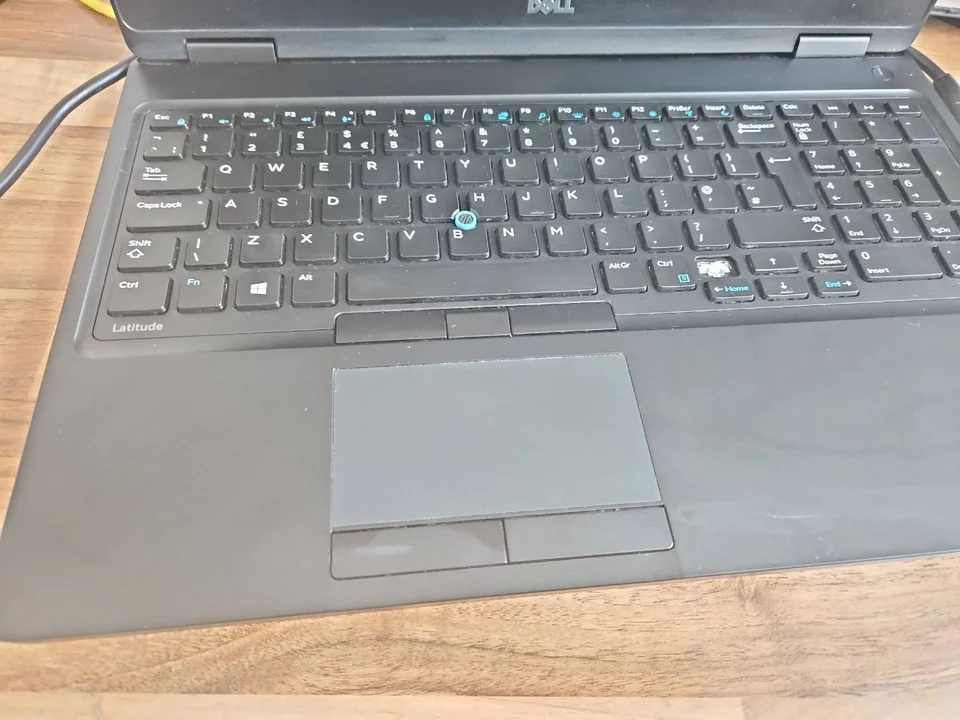

First check whether the computer is actually awake
A black display does not always mean the whole computer failed to wake. Look for evidence that Windows resumed: keyboard backlights, Caps Lock response, fan-speed changes, drive activity, notification sounds or an external monitor receiving a signal.
PC wakes, screen stays black
Display output, graphics driver, monitor, cable, dock or panel path becomes more likely.
No response at all
The system may be stuck in a sleep-state transition, power-management fault or firmware/hardware problem.
Only keyboard/mouse cannot wake it
The PC may still wake correctly from the power button while those devices are not armed or supported as wake sources.
Problem began after update
Driver, Windows, BIOS or firmware timing deserves attention before replacing hardware.
How Windows sleep and wake should behave
Microsoft describes Sleep as a low-power state designed to let a PC resume quickly. On most PCs the power button can resume the machine, while some can also wake from the keyboard, mouse or opening the laptop lid. The exact behaviour depends on the computer design and firmware.
This matters because a mouse failing to wake one system is not proof of a fault if that device is not configured or capable of waking that sleep state. Test the manufacturer's expected wake method first.
Modern systems do not all use the same underlying sleep state. Microsoft documents multiple ACPI power states and notes that device wake capability can vary by platform. Avoid copying a setting from another PC without checking what your own machine supports.
What if the PC wakes but the screen remains black?
If Windows sounds, keyboard response or remote access show that the PC is awake, the problem has moved toward the display path. Try the monitor's power and input selection, reconnect an external display once, and if Windows appears responsive press Windows + Ctrl + Shift + B once to request a graphics-driver reset.
On a laptop, compare the built-in screen with one known-good external monitor if the model supports it. A problem that only affects the internal panel points in a different direction from one that leaves every display blank.
If the computer also has black-screen problems from a cold start, use our PC turns on but no display guide or laptop black-screen guide instead of treating the issue as sleep-only.
Why the keyboard or mouse may not wake the computer
Windows exposes which devices can wake a system, but the hardware and firmware still determine what is possible. A USB keyboard may work normally after boot but not be able to wake a deeper sleep state on a particular computer.
Microsoft's powercfg tool can list devices that are armed for wake and can enable or disable wake capability on supported devices. Do not enable every device indiscriminately; that can create unwanted wake-ups instead of fixing a resume failure.
Useful powercfg checks for sleep and wake faults
For a repeatable Windows sleep problem, built-in diagnostics are more useful than guessing. Open Terminal or Command Prompt as administrator and record the results before changing settings.
| Command | What it tells you |
|---|---|
powercfg /a | Sleep states available on this system and, where possible, why a state is unavailable |
powercfg /devicequery wake_armed | Devices currently configured to wake the system |
powercfg /lastwake | Information about the most recent wake event |
powercfg /waketimers | Active timers allowed to wake the system |
powercfg /systemsleepdiagnostics | Creates a diagnostic report of sleep transitions on supported Windows versions |
Microsoft also provides powercfg /sleepstudy for analysing Modern Standby behaviour on supported systems. These tools help describe the power-state behaviour; they do not automatically prove that a specific driver or motherboard component is faulty.
Drivers, BIOS and firmware can affect resume behaviour
Graphics, chipset, storage, USB and network drivers all participate in power transitions. A resume problem that began immediately after a driver, Windows or BIOS change should be compared with that change before parts are ordered.
Use the PC or motherboard manufacturer's supported drivers and firmware. Avoid third-party driver-updater utilities. If a BIOS update is being considered, follow the manufacturer procedure and do not interrupt power during the update.
A firmware reset or BIOS default change should not be used casually on a machine with custom storage, BitLocker or business settings. Record the current configuration first.
External monitors, docks and USB devices after sleep
Microsoft notes that monitors, printers and scanners can sometimes need to be disconnected and reconnected or have current drivers installed if they do not work correctly after sleep or hibernate. Docks add another layer because display, USB, charging and network functions can all pass through one device.
For diagnosis, simplify the setup. Disconnect non-essential USB devices, docks and extra monitors, then test sleep and resume with the basic keyboard, mouse and one display. Add devices back one at a time after a stable result.
If USB devices remain unavailable after a normal restart as well as after sleep, use our USB ports not working guide to separate the accessory, port, controller and motherboard path.
Safe checks before booking a repair
- Use the normal wake method. Press the power button once and check the manufacturer documentation for keyboard, mouse or lid wake support.
- Check if Windows is actually awake. Look for sounds, keyboard response and display output.
- Test without docks and extras. Remove non-essential USB devices and additional displays.
- Install supported updates. Use Windows Update and the PC manufacturer's chipset, graphics and firmware packages.
- Record powercfg results. Save
/a,/devicequery wake_armedand relevant diagnostics before changing settings. - Test a clean sleep cycle. Restart normally, let Windows settle, enter Sleep once and attempt one normal wake.
- Protect your work. If the fault forces hard shutdowns, save files before testing and keep backups current.
When can a sleep/wake problem point to hardware?
Hardware becomes more likely when the machine also has cold-start failures, random shutdowns, memory errors, unstable USB, display faults or power problems outside sleep. A PC that only resumes after removing mains power may need power-supply, motherboard or firmware diagnosis rather than another Windows setting.
On laptops, battery, charging and embedded-controller faults can complicate resume behaviour. On desktops, PSU instability, RAM, GPU and motherboard power-state problems may need controlled testing.
If the machine is also restarting or shutting down unexpectedly, use our computer keeps restarting guide rather than assuming sleep itself is the root cause.
Sleep and wake symptom decision table
| Symptom | Likely area to investigate first |
|---|---|
| PC wakes but screen is black | Display, graphics driver, monitor, dock or panel |
| Power button wakes it but mouse does not | Device wake capability/configuration |
| PC wakes itself unexpectedly | Wake timer or armed device |
| Only fails after a driver/update change | Driver, Windows or firmware timing |
| Fails with docks and USB attached | Peripheral, dock, USB power/wake path |
| Also fails from a cold start | Broader hardware, power or display fault |
| Needs mains power removed to recover | Firmware, PSU or motherboard diagnosis |
How sleep-resume faults are diagnosed
- Reproduce the exact sleep and wake pattern rather than treating every black screen as the same fault.
- Check whether Windows resumes while the display remains blank.
- Review powercfg sleep states, wake devices and diagnostic reports where useful.
- Test with docks, USB accessories and extra displays removed.
- Check supported graphics, chipset and firmware versions.
- Compare the sleep fault with cold-start, power, memory and display behaviour.
- Recommend Windows repair, driver/firmware work or hardware diagnosis based on the evidence.
Windows sleep and wake repair in Birmingham
PC Repair Guru provides Windows repair in Birmingham and computer and PC repair from an appointment-only Small Heath workshop. If your PC will not wake from sleep, tell us whether the power button works, whether the screen stays black and whether the fault started after an update or hardware change.
Laptop users can also use our laptop repair Birmingham service when the problem involves charging, battery, display or motherboard symptoms as well as sleep.
Frequently asked questions
Why does my PC not wake from sleep?
The cause can be a display or graphics problem, an unsupported wake device, driver or firmware behaviour, a peripheral/dock conflict or a deeper power-state hardware fault.
Why does the computer wake but the screen stay black?
If Windows is responsive but the display remains blank, investigate the monitor, cable, dock, graphics driver and internal display path before treating it as a complete power failure.
Can a keyboard or mouse be unable to wake a healthy PC?
Yes. Wake support depends on the device, firmware and sleep state. Some computers are designed to wake reliably only from the power button or lid.
What does powercfg /lastwake do?
It reports information about the most recent event that woke the PC. It is useful for unexpected wake-ups, but it does not diagnose every failure to resume.
Should I keep forcing the PC off when it will not wake?
Repeated hard shutdowns should not be the routine fix. Save work, simplify the setup and diagnose the sleep/resume problem, especially if forced shutdowns are frequent.
Can PC Repair Guru diagnose Windows sleep problems in Birmingham?
Yes. We can check Windows, drivers, displays, peripherals, power behaviour and relevant hardware before recommending a repair route.