Check where Windows is sending the sound
Open the sound-output selector and verify that the built-in speakers are selected. Connecting a monitor, television, dock or Bluetooth headset can change the available output. A screen displaying a picture is not proof that it has speakers, or that its own volume is turned up.
Then check the master volume and the application's volume. Compare a local audio file or Windows test sound with the app that appears silent. An individual tab or player may be muted even when the main volume is high. Microsoft's audio troubleshooting guide covers output selection, sound settings and drivers as separate checks.
This comparison can prevent an unnecessary speaker replacement. If one app is silent but another plays normally through the same speakers, start with that application's settings, not the laptop's internal wiring.
Use a simple comparison before ordering speakers
| Result | What to investigate | Useful next observation |
|---|---|---|
| Only one app is silent | App volume, selected device or app settings | Does a system test sound work? |
| Headphones work, speakers do not | Speaker routing or built-in speaker path | Are speakers selected after unplugging? |
| Speakers work, wired headset does not | Headset, plug compatibility or jack | Does another suitable headset work? |
| Sound goes to a monitor | Display audio selection | Does choosing speakers restore sound? |
| All outputs fail after an update | Audio driver or wider software state | What changed immediately before the fault? |
Do not treat any row as a diagnosis by itself. A comparison gives the technician a narrower starting point and makes intermittent symptoms easier to reproduce.
Headphones work but the laptop speakers are silent
First disconnect the headphones and verify the output again. Some systems can remain routed to another device, and audio-control software may have its own choices. Test at a moderate volume with more than one source.
If the built-in speakers remain silent while other outputs work, the speakers, cable, connector or audio circuitry may need checking. A crackle or distortion on one side is a different fault from both speakers disappearing from Windows. Note whether the problem followed liquid exposure, a fall or internal repair work.
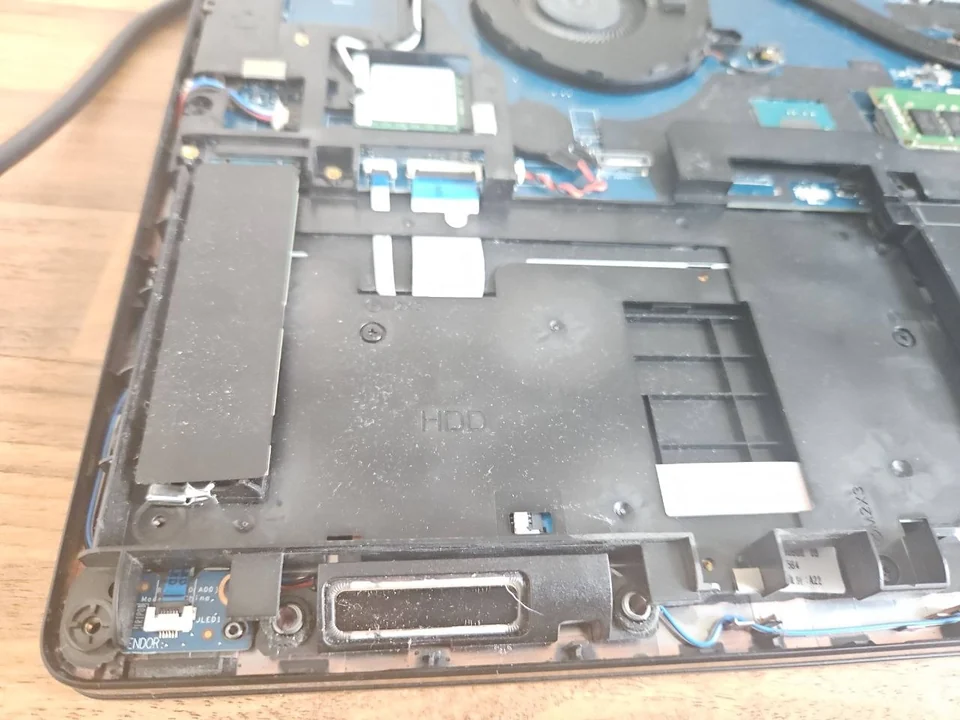
Do not prise speaker grilles out or push tools through them. Speaker assemblies and their connections differ between models. A laptop that needs a speaker or connector repair does not automatically need a replacement motherboard.
Wired headphones or a microphone headset behave differently
A headphone socket, a headset socket and an adapter can support different connections. A headset may play sound while its microphone remains unavailable, or work on another device with a different adapter. Check the accessory specification rather than assuming the laptop jack must be damaged.
Use a known-working compatible accessory as a comparison. Do not force a bent plug into the socket or repeatedly move it sideways to recover audio. A plug that only works under pressure can make physical damage worse.
USB headsets have their own audio device path. If Windows does not recognise one at all, the USB port fault guide may be more relevant than speaker diagnosis. Record whether the fault occurs on a direct port or only through a hub.
Bluetooth or dock audio needs a separate check
Disconnect Bluetooth audio temporarily and test the built-in speakers. If they work, investigate the wireless device, pairing and selected output. A device being paired does not guarantee that the app is using it for playback. Microsoft's Bluetooth troubleshooting route is useful for that distinction.
For a dock, compare direct laptop audio with the dock connected and disconnected. Bring the dock when booking a repair if it is necessary to reproduce the problem. A workshop test without the accessory may never show the symptom that occurs on your desk.
When an audio driver change is appropriate
If the issue followed an update or Windows reinstall, check the laptop maker's supported audio driver for the exact model. Audio components can involve manufacturer software as well as a generic Windows device. Downloading the first similarly named driver is not a reliable approach.
Save work before changing drivers and record the existing error or version. A supported update or rollback may help in the right circumstances, but repeatedly removing devices is not a substitute for identifying which output fails. On an employer-managed computer, involve IT before changing the software configuration.
Reinstalling Windows should not be the first response to a silent speaker. It can remove applications and settings without fixing a damaged jack, cable or speaker.
Arranging laptop audio diagnosis in Birmingham
Bring the laptop and any headset, dock or adapter needed to demonstrate the fault. Explain which output works, which fails and whether the problem happens in every application. Use a non-confidential audio sample rather than sharing a private meeting recording.
PC Repair Guru's laptop repair service in Birmingham can investigate settings, software and hardware before recommending replacement parts. If the laptop recently had a spill, tell us first and follow the liquid-damage guidance rather than continuing powered tests.
The useful result is not simply "sound restored" once. The original output and accessory combination should be retested so the repair actually addresses the way you use the machine.
Frequently asked questions
Why does connecting a monitor stop my laptop sound?
Windows may have selected the monitor or display connection as the audio output. Check the selected device, the monitor's audio capability and both volume controls before treating it as a speaker fault.
Do working headphones prove the speakers are broken?
No. They narrow the problem, but output routing, manufacturer audio software and the speaker connection still need checking. Hardware replacement should follow those comparisons.
Can laptop speakers be replaced separately?
Often there is a model-specific speaker assembly, but the design and fault determine the repair. A damaged cable, socket or circuit needs a different solution from a failed speaker unit.