
What to do in the first minute
- Switch the laptop off. If it is unresponsive, hold the power button until it shuts down.
- Disconnect the charger and accessories. Remove USB devices, docks, external drives and network cables.
- Do not press the power button again. A laptop that appears to work can still have liquid under the keyboard or around live circuits.
- Blot the outside. Use a clean, absorbent cloth without pressing liquid through the keys or openings.
- Let gravity help only if it is safe. Place the keyboard facing downward on a dry towel without shaking the laptop or forcing the hinges.
- Remove only a user-removable battery. Do not dismantle a laptop with an internal battery unless you have the correct procedure and experience.
If liquid has reached a mains plug, socket or power adapter, do not touch wet electrical equipment. Isolate the supply only when it can be done safely.
What not to do after spilling liquid on a laptop
The most damaging mistake is repeated testing. A quick check can apply power to wet or contaminated components and turn a local fault into wider motherboard damage.
- Do not reconnect the charger to see whether the charging light appears.
- Do not keep trying to start Windows or make a backup from the wet laptop.
- Do not use a hairdryer, heater or other external heat source.
- Do not blow compressed air into the keyboard or ports.
- Do not insert kitchen roll, cotton buds or metal tools into openings.
- Do not put the laptop in rice. Rice does not remove internal residue and can introduce particles.
Does the type of drink matter?
Every liquid spill should be treated seriously, but the residue left behind changes the repair risk. Plain water can still bridge electrical contacts and lead to corrosion. Tea, coffee, fizzy drinks, juice and alcohol-based drinks can contain sugar, milk, acids or other material that remains after the moisture has evaporated.
| Liquid | Main concern after the spill | What the workshop needs to know |
|---|---|---|
| Plain water | Electrical shorting, minerals and later corrosion | Approximate amount and whether the laptop was powered |
| Tea or coffee | Residue, especially when milk or sugar was added | Whether keys became sticky or stopped responding |
| Fizzy drink or juice | Sticky, conductive residue across connectors and boards | Where it entered and whether charging or display faults followed |
| Cleaning fluid or alcohol | Coating, adhesive or component damage depending on the product | The exact product name where known |
Do not assume a small amount is harmless. Liquid can travel along keyboard membranes, ribbon cables and screw channels to areas that are not visible from the outside.
Why a laptop can work at first and fail later
A laptop may continue working immediately after a spill because the liquid has not yet reached a sensitive circuit, or because the residue has not created a reliable electrical path. Once the laptop is moved, charged or warmed during use, contamination can spread and corrosion can develop around connectors, component legs and board traces.
Delayed symptoms can include sticky or dead keys, a touchpad that behaves erratically, charging problems, no display, random shutdowns, fan errors or a laptop that no longer powers on. A later failure does not necessarily mean the storage and files are lost.
Common parts affected by laptop liquid damage
- Keyboard and backlight: individual keys, groups of keys or the complete keyboard may stop working.
- Ribbon cables and connectors: low-profile contacts can retain residue and become intermittent.
- Touchpad and palm-rest assembly: clicks, gestures or pointer movement may become unreliable.
- Battery and charging circuit: charging may stop or the laptop may behave unpredictably on battery power.
- Motherboard: power rails, controllers and small surface-mounted components can be affected.
- Display connections: liquid or corrosion near display circuitry can cause a black screen or flickering.

How PC Repair Guru assesses a liquid-damaged laptop
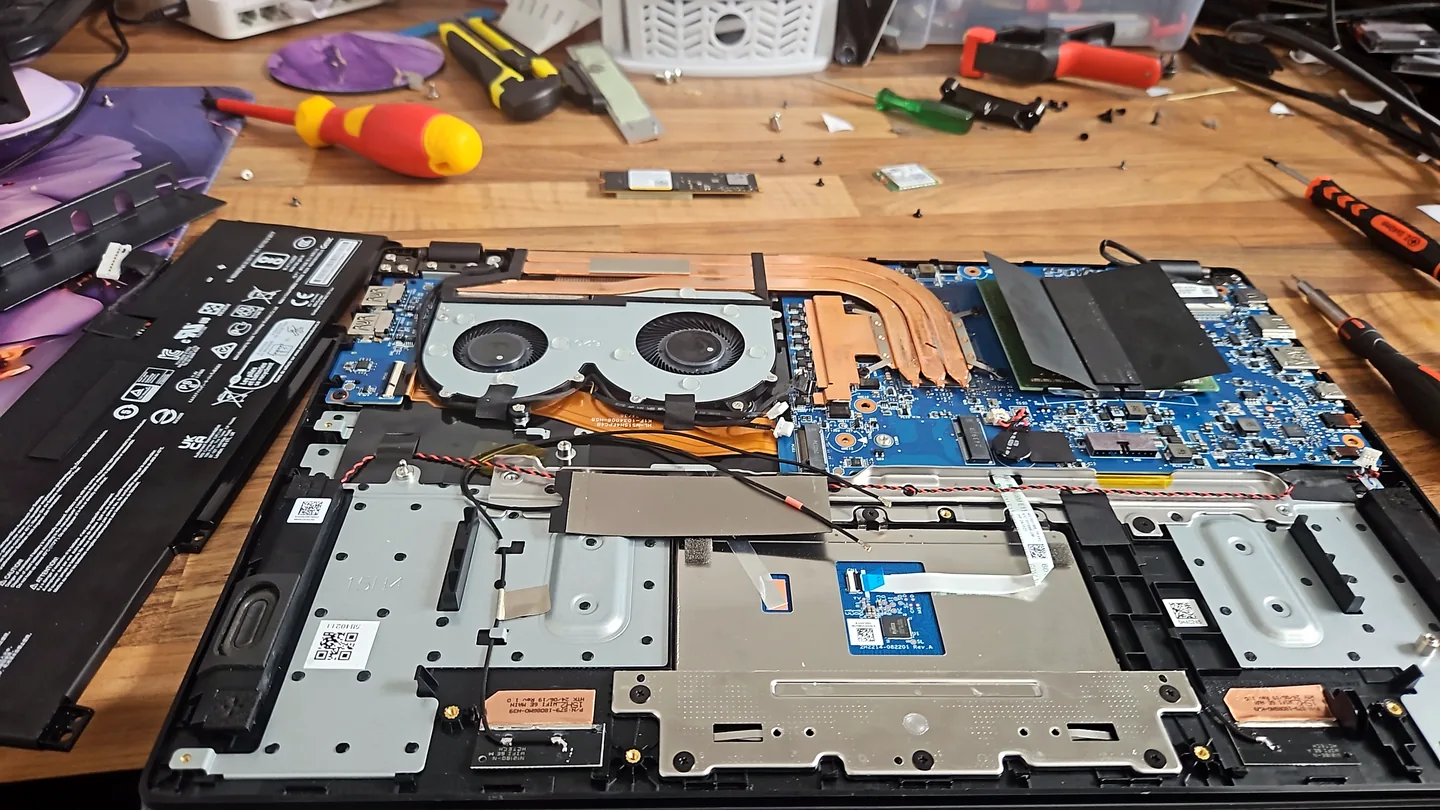
The first stage is to record the exact model, the liquid involved, where it entered, whether the laptop was powered and what happened afterwards. The case is then opened using the correct procedure so the keyboard area, battery, connectors and motherboard can be inspected before controlled testing.
Depending on the findings, the repair may involve cleaning affected areas, replacing a keyboard or palm-rest assembly, repairing a connector, replacing a damaged part or carrying out motherboard diagnosis and board-level repair. Parts are not ordered until the fault and model compatibility have been checked.
A laptop that still works is not automatically cleared. It should be tested for charging, battery condition, keyboard response, touchpad operation, display output, storage health and stability.
Repair the laptop or recover the data?
The best route depends on the laptop's value, the extent of the damage and how important the files are. Sometimes the device can be cleaned and repaired. In other cases, protecting the data first is more sensible than repeatedly powering a damaged machine.
If the laptop is not economical to repair, its storage may still be assessed through the Birmingham data recovery service. Recovery depends on the storage type, physical condition and encryption. BitLocker, device encryption or a soldered storage design can affect the available options.

Related symptoms after a spill
A liquid spill can overlap with several faults already covered in the repair guides. Use these only to understand the symptom, not as a reason to power the laptop again.
- Sticky, missing or unresponsive keys: see the laptop keyboard fault guide.
- Power lights with no picture: see the laptop black-screen diagnosis guide.
- Battery or charging problems: see the battery replacement service and charging-port service.
What affects the repair quote and turnaround
A reliable quote depends on inspection. The main factors are the laptop model, the liquid and amount involved, whether power was connected, how long the device remained in use, which components are affected, whether board-level work is needed and whether model-specific parts are available.
Accidental liquid damage is commonly excluded from standard manufacturer warranties. If the laptop is insured or covered by an accidental-damage plan, check the claim terms before authorising independent work. Keep a note of what was spilled, when it happened and what actions were taken.
Arrange liquid-damage assessment in Birmingham
Bring the laptop and its normal charger, but do not reconnect the charger before the appointment. Send the exact model, the liquid involved, the approximate amount, the time of the spill and whether the laptop was on or charging. Call 0121 679 9865 or use WhatsApp to arrange an appointment at the Small Heath workshop.
Safety guidance checked
The immediate safety steps in this guide were checked against current official guidance from Dell Support and Apple Support. Both emphasise shutting the laptop down, disconnecting power and avoiding power-on attempts while liquid may still be present. Apple's guidance also warns against external heat, compressed air and rice.
Frequently asked questions
Should I turn the laptop on to see whether it still works?
No. Repeated power-on attempts can turn a limited spill into a short circuit or wider board fault. Keep it switched off until it has been assessed.
Should I put a wet laptop in rice?
No. Rice does not remove internal residue, and small particles can enter ports or the keyboard. Use a dry area with airflow and arrange inspection instead.
Can I dry a laptop with a hairdryer or compressed air?
Avoid external heat and compressed air. Heat can damage plastics and batteries, while forced air can push liquid deeper into connectors and other components.
Is coffee or a sugary drink worse than plain water?
Milk, sugar and other dissolved material can leave sticky or conductive residue after the visible liquid dries. Plain water can still cause electrical and corrosion damage.
Can files be recovered from a liquid-damaged laptop?
Often, but it depends on the storage device, encryption and whether the storage electronics were affected. The laptop should not be powered merely to test the files.
How quickly should a liquid-damaged laptop be inspected?
Prompt assessment is sensible, especially when the laptop was powered during the spill or the drink contained sugar or milk. Do not keep testing it while waiting.
If the laptop is now completely unresponsive, do not keep testing it; the laptop won't turn on guide explains how a no-power symptom is classified once liquid-damage safety has been addressed.