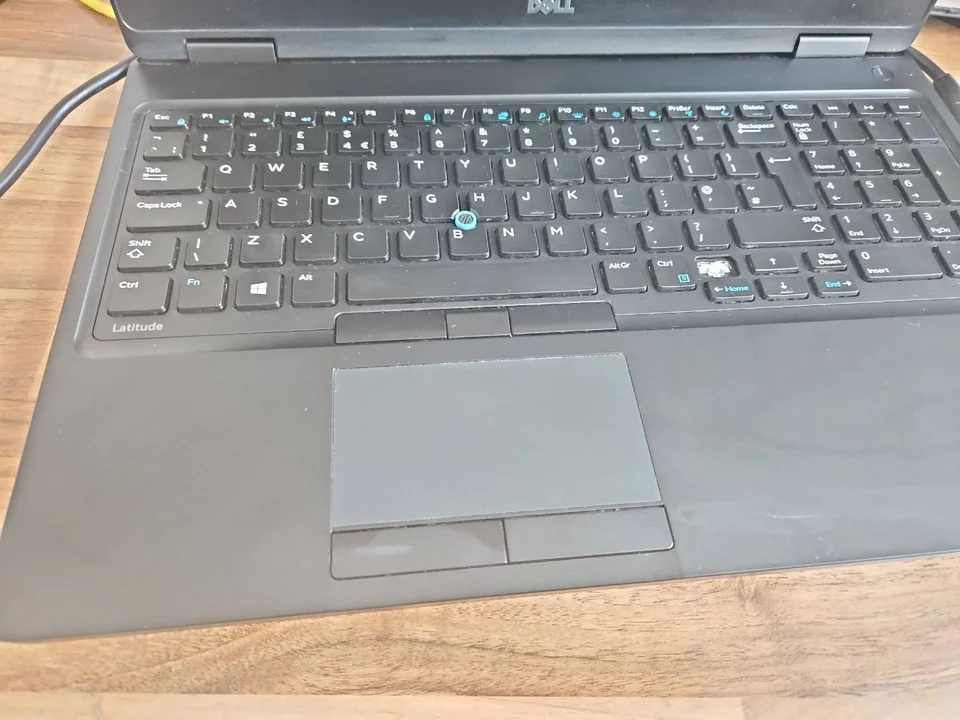

First: is the laptop really not turning on?
“Won't turn on” can describe several different faults. Before changing settings or ordering parts, watch what happens when you press the power button once.
No lights, fan or sound
Start with the socket, charger, charging input and power path. This is a genuine no-power pattern.
Charging light, but no startup
Power is reaching at least part of the laptop, but that does not prove the battery, charger or internal power circuitry is healthy.
Lights or fan, but no picture
The laptop may already be on. Treat this as a display, graphics or failed-startup symptom rather than assuming total power failure.
Logo appears, but Windows will not load
The laptop has powered on. The next diagnosis is startup, storage or Windows rather than a completely dead machine.
This distinction is important because a charger fault, black screen and Windows boot problem need very different tests.
Laptop completely dead: no lights, fan or sound
If there is no response at all, confirm the wall socket works and inspect the correct charger and cable for cuts, heat damage, a loose connector or obvious deformation. If the laptop normally has a charging indicator, note whether it remains completely dark when the adapter is connected.
A dead-looking laptop can involve the adapter, USB-C Power Delivery negotiation, DC charging socket, battery, power button, internal connector or motherboard power circuit. The symptom alone does not identify which part has failed.
Do not test a random adapter merely because its plug fits. Voltage, polarity, wattage, USB-C PD profile and manufacturer identification can matter.
Why won't my laptop turn on even when it is plugged in?
Being plugged in does not prove usable power is reaching the laptop. An adapter can fail under load, a damaged charging port can interrupt delivery, a USB-C charger can negotiate the wrong power profile, or an internal fault can prevent the laptop from starting.
If charging itself is abnormal, use our laptop not charging guide to separate adapter, battery and charging-port clues. Avoid repeatedly moving a loose connector to force contact because arcing or heat can worsen a damaged port.
Laptop won't turn on but the charging light is on
A charging LED is useful evidence, but it only shows that part of the charging or power system has responded. It does not prove the battery can supply startup current or that the motherboard can complete its power sequence.
Watch what happens when you press power. If the light or fan appears briefly and then everything switches off, that is a different pattern covered in our power light comes on then goes off guide. Record blink patterns rather than repeatedly cycling the machine.
Laptop won't turn on after the battery went completely flat
Use the correct charger and allow a deeply discharged battery some time to respond before testing again. Some laptops will not start immediately from a fully depleted state.
If there is still no charging indication or the adapter becomes unusually hot, cuts out or behaves differently when connected, stop treating it as an ordinary flat battery. The charger, charging input, battery or internal power path may need testing.
If the case is bulging, the trackpad or keyboard has lifted, or the battery area is unusually hot, disconnect power if safe and stop using the laptop. Do not press or puncture a swollen battery.
Laptop has lights or fan activity but the screen stays black
If you can hear a fan, see keyboard lights or get other signs of life, the laptop may be powering on without producing a usable picture. That can involve the display panel, backlight, cable, memory, graphics path or failed startup.
That is not the same as a completely dead laptop. Our laptop turns on but the screen is black guide covers the display-side checks without mixing them into a no-power diagnosis.
Laptop won't turn on after a drop, liquid spill or overheating
Recent events matter. A fall can damage the charging socket, internal connectors or board. Liquid can create corrosion or electrical shorts. Severe heat can trigger protection or expose an existing cooling or power problem.
After a spill, do not keep pressing power to “see if it survived.” Disconnect external power if safe and follow our laptop liquid-damage guide. Repeated energising can make diagnosis and data recovery harder.
Stop immediately if you notice smoke, a burning smell, battery swelling, sparking or unusual heat.
Could the battery, RAM or motherboard stop a laptop turning on?
Yes, but none should be diagnosed from the symptom alone.
Battery
A failed or deeply discharged battery can affect startup, but a charging-port or adapter fault can look similar.
Memory
Memory faults can prevent startup or display on some systems, but many modern laptops use soldered memory and should not be opened just for speculative reseating.
Motherboard
Internal power circuitry can fail, but a board should not be condemned before the adapter, input, battery and observable startup behaviour are tested.
Diagnostics first avoids replacing an expensive part simply because it is one possible cause.
Are my files lost if the laptop won't turn on?
Not necessarily. A laptop power fault and a storage failure are separate problems. If the SSD or hard drive remains healthy, the data may still be recoverable even when the laptop itself will not start.
If the files matter, avoid factory resets, reinstalling Windows or unnecessary write operations. Our guide to recovering data from a laptop that will not turn on explains the data-first route, and our Birmingham data recovery service covers hands-on diagnosis when storage access is uncertain.
Safe checks before paying for a laptop repair
- Test the wall socket with another device.
- Use the correct charger for the exact laptop and inspect its cable and connector.
- Disconnect docks, USB devices, memory cards and other non-essential accessories.
- Note charging lights, keyboard lights, fan movement, sounds and any blink pattern.
- If the manufacturer documents a power-reset procedure for your exact model, follow that procedure rather than a generic internet shortcut.
- If the battery was completely flat, allow time on the correct charger before one normal startup attempt.
- If there are signs of power but no picture, switch to display diagnosis rather than repeatedly forcing shutdowns.
- Record what happened immediately before the fault: update, drop, spill, charger change, overheating or hardware work.
These checks are intended to classify the fault, not to prove a component has failed.
When should you stop trying to turn the laptop on?
Stop repeated attempts if there is liquid exposure, a burning smell, smoke, sparking, battery swelling, severe heat, a damaged charging connector or an adapter that repeatedly enters protection. Also stop if important data is at risk and the storage device is making abnormal mechanical noises.
Do not open or puncture a battery, bypass damaged charging hardware, or keep applying power to a wet machine.
How a no-power laptop is diagnosed without guessing parts
A useful diagnosis follows the power path and the symptom. The correct adapter is checked, charging and indicator behaviour is observed, external causes are removed, and the startup stage is recorded. Internal testing is then guided by evidence rather than replacing the battery or motherboard first.
If the machine shows signs of life, the route changes to display, memory or startup testing. If it is completely dead, power input and internal power circuitry become more relevant. This separation is what prevents a black-screen fault being misquoted as a dead motherboard.
Laptop won't turn on in Birmingham?
PC Repair Guru diagnoses laptop no-power and failed-startup faults from our appointment-only Small Heath workshop in Birmingham. Bring the laptop with its correct charger and tell us what happened immediately before the fault, including any drop, spill, update, overheating or charger change.
Our laptop repair service in Birmingham covers hands-on diagnosis when the external checks do not identify the cause. We diagnose first and explain the supported repair route before parts are replaced.
Frequently asked questions
Why is my laptop not turning on at all?
Possible causes include the wall supply, charger, charging input, battery, power button or internal power circuitry. Start by establishing whether there are truly no lights, fan activity or sounds.
Why won't my laptop turn on even though the charging light is on?
The charging light shows that part of the power system has responded, but it does not prove the battery or motherboard can complete startup. Observe whether the power light or fan appears and then stops.
Can a bad charger make a laptop look completely dead?
Yes. A failed, incompatible or underpowered adapter can leave a laptop with no usable startup power. Use the correct specification for the exact model rather than a plug that merely fits.
Can a flat battery stop a laptop from turning on?
Yes. A deeply discharged battery may need time on the correct charger. If there is no charging response, the charger, port, battery or internal power path may need testing.
Should I factory reset a laptop that will not turn on?
No. A factory reset does not repair a no-power hardware fault and can risk personal data. First establish whether the laptop has power, a display problem or an operating-system startup problem.
Can PC Repair Guru diagnose a laptop that will not turn on in Birmingham?
Yes. We can test the power and startup path, separate charger, battery, charging-port, display and internal hardware symptoms, and explain the repair options before parts are ordered.