
First identify no power, no POST, no boot or no video
“The PC does not work” can describe several different faults. Separating them prevents the wrong repair route.
No power
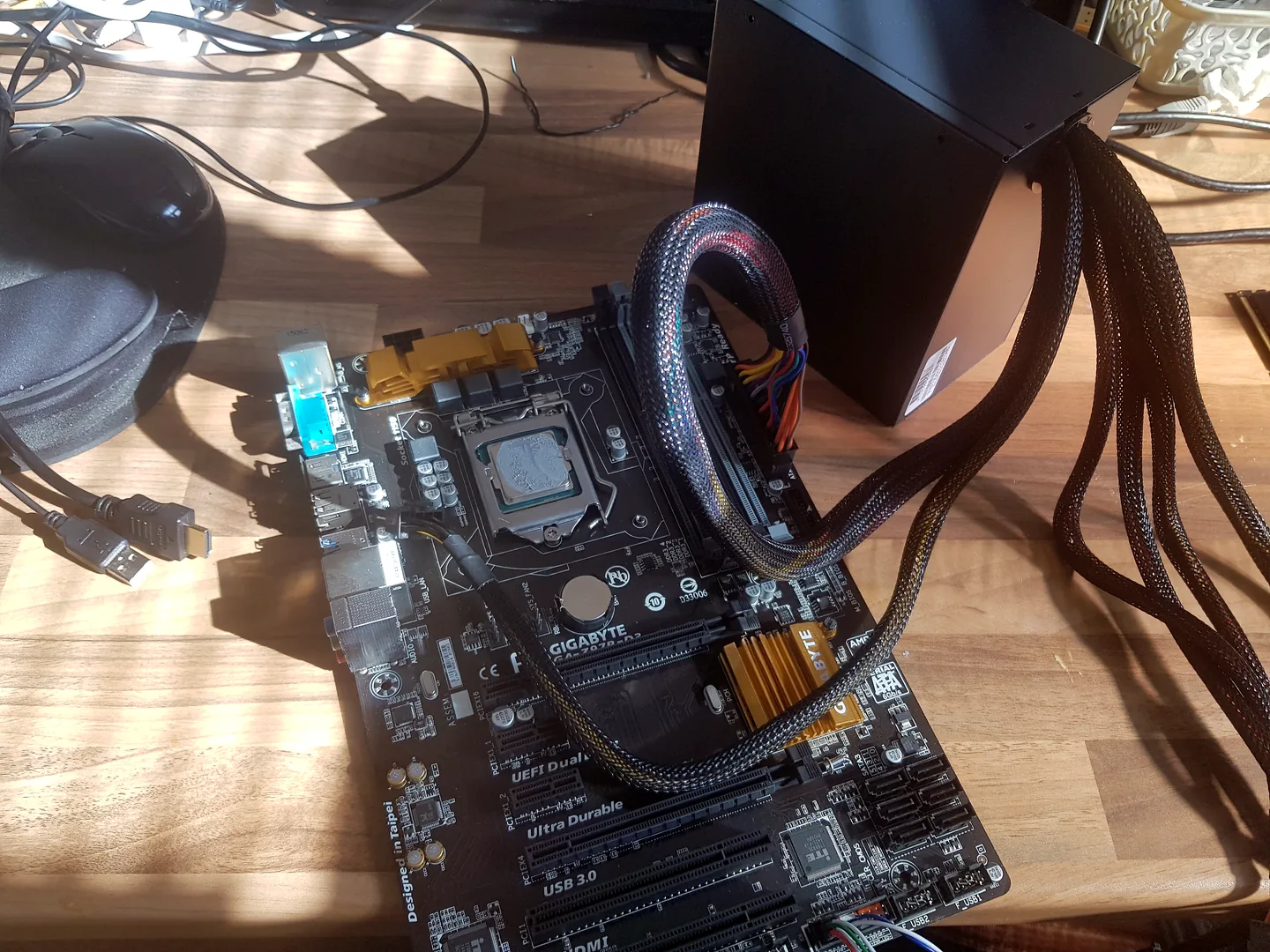
No fans, lights or response when the power button is pressed. This points towards mains power, cabling, the power supply, front-panel switch or motherboard power path.
No POST
The machine receives power but does not complete its Power-On Self-Test. Beeps, diagnostic LEDs or a fixed motherboard warning light may identify the area that failed.
No boot
The PC shows a logo or BIOS screen but Windows does not load. That is mainly a boot, storage or operating-system problem rather than a pure display fault.
No video
The computer may complete startup, but no usable picture reaches the monitor. The monitor, cable, input selection, graphics output or driver may be involved.
Dell’s current startup guidance makes the same distinction between no power, no POST, no boot and no video. That distinction is useful across brands because it tells you which stage has failed.
Five-minute checks before opening the case
Work through these in order. A wrong monitor input or damaged cable can look exactly like a failed computer.
- Confirm the monitor is powered on. Check its power light and menu.
- Select the correct input. Match HDMI, DisplayPort, DVI or USB-C to the cable in use.
- Reseat the display cable at both ends. A partly inserted DisplayPort plug is easy to miss.
- Try a known-good cable. Do not assume a cable works because it looks undamaged.
- Try another monitor or television. Also test the original monitor with another device where possible.
- Disconnect extra screens and docks. Leave one monitor connected directly to the PC.
- Remove non-essential USB devices. A faulty peripheral can interrupt startup on some systems.
Check the correct video output
On a desktop with a dedicated graphics card, the monitor normally connects to the ports on that card, lower down on the back of the case. The motherboard video outputs sit beside the USB and network ports higher up.
Moving the cable to a motherboard port does not always work. Some processors have no integrated graphics, and some systems disable the onboard output when a graphics card is installed. Use the configuration that previously worked unless you are deliberately isolating the graphics card and know the processor supports onboard graphics.
ASUS recommends checking whether the system is using the processor’s integrated display output or a dedicated graphics-card output, confirming the monitor input and testing another cable or monitor before deeper hardware work.
Read the startup clues before changing parts
Look and listen during the first 30 seconds after pressing the power button:
- Does the keyboard light briefly?
- Do the fans start and then settle, or remain at full speed?
- Is there one beep, a repeating beep pattern or no beep?
- Does a CPU, DRAM, VGA or BOOT diagnostic LED remain lit?
- Does the PC restart repeatedly?
- Can you hear the Windows login sound despite no picture?
- Did the fault begin after moving the PC, cleaning it or changing hardware?
A fixed DRAM light points towards memory detection. A fixed VGA light points towards the graphics path. These indicators are not identical across every motherboard, so use the exact board manual rather than a generic chart.
Common internal causes of a PC powering on with no display
Memory not completing POST
A slightly unseated module, incompatible memory profile, failed module or damaged slot can stop the PC before video begins. This is especially relevant after moving the case or changing RAM.
Graphics-card or graphics-power problem
The card may be loose, its power cable may be incomplete, the output port may be damaged or the card may have failed. A fan spinning on the graphics card does not prove the card is producing a valid signal.
CPU or motherboard startup fault
CPU power, socket damage, BIOS compatibility, a failed firmware update or a motherboard fault can prevent POST. These faults can produce the same black-screen symptom as bad RAM or a GPU problem.
Power supply delivering partial power
Lights and fans can operate even when the power supply cannot provide stable power to every rail or connector. A no-display fault should not be diagnosed from fan movement alone.
Firmware or CMOS configuration
Unstable overclocking, an unsuitable memory profile or changed display settings can prevent normal startup. Clearing CMOS may help in some cases, but it should be done only with the system fully disconnected and according to the motherboard manual.
Safe internal checks if you are confident
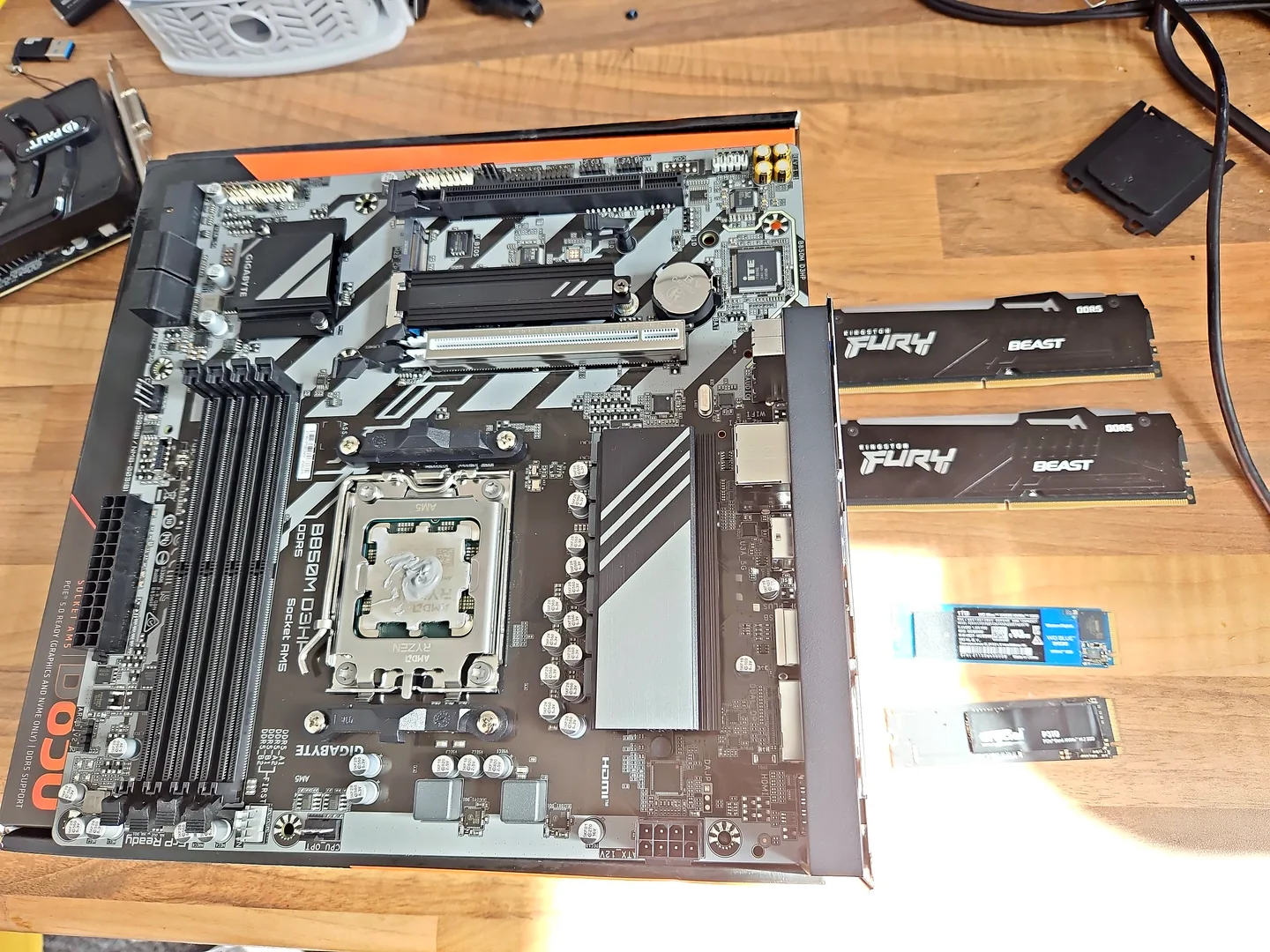
Only open the case after shutting down, switching the power supply off, unplugging the mains lead and allowing the system to discharge. Avoid working on carpet and do not touch contacts unnecessarily.
- Confirm the 24-pin motherboard and CPU power connectors are fully seated.
- Check the graphics-card power connectors and card seating.
- Test one memory module in the motherboard’s recommended slot.
- Remove recently added cards or USB devices and retest a minimal configuration.
- Check the motherboard’s diagnostic LEDs or code display.
- Use onboard graphics only when the processor supports it.
- Clear CMOS only by the procedure in the exact motherboard manual.
If you are unsure how to identify the correct connectors or slots, stop before introducing a second fault. A bent CPU socket pin, shorted board or damaged connector can turn a simple diagnosis into a motherboard repair.
What different no-display symptoms can mean
| What you observe | More likely area | Useful first check |
|---|---|---|
| Monitor says “No Signal”, but PC sounds normal | Cable, input, monitor or selected output | Test another cable, input and screen |
| No logo, fixed DRAM light | Memory detection or configuration | Power off and test one compatible module |
| No logo, fixed VGA light | Graphics card, output, power or PCIe path | Check GPU seating, power and another output |
| Windows login sound but no picture | Display output, monitor or graphics driver | Try another screen and Windows display reset |
| PC repeatedly starts and stops | Memory training, power, firmware or board fault | Return recent settings to default and isolate hardware |
| Picture appears in BIOS but disappears in Windows | Driver, resolution or Windows display problem | Use Safe Mode or low-resolution video |
| Beeping or diagnostic LEDs with no picture | POST-detected hardware area | Record the exact pattern and consult the model manual |
No display after an upgrade or after moving the PC
The most recent change is the first place to look. Check whether:
- RAM is fully clicked into both latches;
- the new graphics card is supported and powered correctly;
- the display cable was moved from the GPU to the motherboard;
- the CPU requires a newer BIOS version;
- a PCIe or power cable was disturbed;
- the monitor input changed when the cable changed;
- an XMP, EXPO, overclock or undervolt was enabled.
Reverse one change at a time and retest. Swapping several parts together removes the evidence that helps identify the actual fault.
When the problem starts after Windows begins loading
If you can see the manufacturer logo or BIOS and the screen only becomes blank during Windows startup, the hardware has already produced video. That changes the diagnosis.
Microsoft recommends checking display connections, trying Windows + Ctrl + Shift + B to reset the graphics driver, cycling display modes with Windows + P, and using Safe Mode to update or roll back a display driver where appropriate.
For a system that reaches firmware but will not load the operating system, use our Windows won’t boot in Birmingham guide. For a laptop whose own panel remains black, see the laptop black-screen diagnosis guide.
Protect important data before repeated testing
A pure no-display fault does not automatically mean the storage drive has failed. However, repeated crashes, a clicking hard drive, a drive disappearing from BIOS or corrupted startup attempts can place files at risk.
- Tell the repair shop when data is more important than restoring the PC.
- Do not repeatedly force a failing drive through startup.
- Do not reinstall Windows before confirming the backup position.
- Keep any BitLocker recovery key accessible privately.
If the machine contains irreplaceable files, our data recovery service in Birmingham can assess the safest order of work.
How a no-display fault is diagnosed in the workshop
- Confirm the stage of failure. No power, no POST, no boot and no video are tested differently.
- Prove the external display path. Monitor, input, cable and output are checked first.
- Read POST evidence. Beeps, Q-LEDs, debug codes and restart behaviour are recorded.
- Reduce to a known configuration. Memory, graphics, peripherals and power are isolated one area at a time.
- Test with known-good components. Parts are substituted only when the evidence supports it.
- Repeat the original startup condition. One successful picture is not enough if the fault was intermittent.
This prevents an expensive graphics card from being replaced when the real cause is a cable, memory module, power connector or motherboard fault.
When to stop testing and book a repair
- There is a burning smell, smoke, sparking or visible damage.
- The PSU, connector or graphics-card cable becomes hot.
- The system restarts or shuts down repeatedly.
- A BIOS update failed or power was lost during firmware work.
- CPU socket pins, liquid damage or board corrosion are suspected.
- You do not have known-good parts for controlled testing.
- Important files are at risk.
PC Repair Guru provides PC repair in Birmingham for no-display, no-signal and black-screen faults, with diagnosis before replacement parts are recommended.
Official guidance used for this article
These manufacturer and operating-system references support the safe first checks described above. The exact diagnostic procedure can still vary by computer model and installed hardware.
Frequently asked questions
Why does my PC turn on but show no signal?
The monitor, input, cable, graphics output, RAM, graphics card, power supply, firmware or motherboard can all cause the symptom. Check the external display path before ordering parts.
Should the monitor be connected to the motherboard or graphics card?
If a dedicated graphics card is installed, the monitor normally connects to that card. A motherboard output works only when the processor supports integrated graphics and the system configuration enables it.
Can bad RAM cause no display?
Yes. If memory is not detected or stable, the computer may fail POST before any picture appears.
Does a spinning graphics-card fan prove the GPU works?
No. Fan power does not prove that the card completed initialization or is producing a valid display signal.
Can a bad PSU cause fans to spin but no display?
Yes. A power supply can provide enough power for lights and fans while failing to supply stable power to the CPU or graphics path.
Can PC Repair Guru diagnose a no-display PC in Birmingham?
Yes. The monitor path, POST clues, RAM, GPU, power and motherboard can be isolated before replacement parts are recommended.