
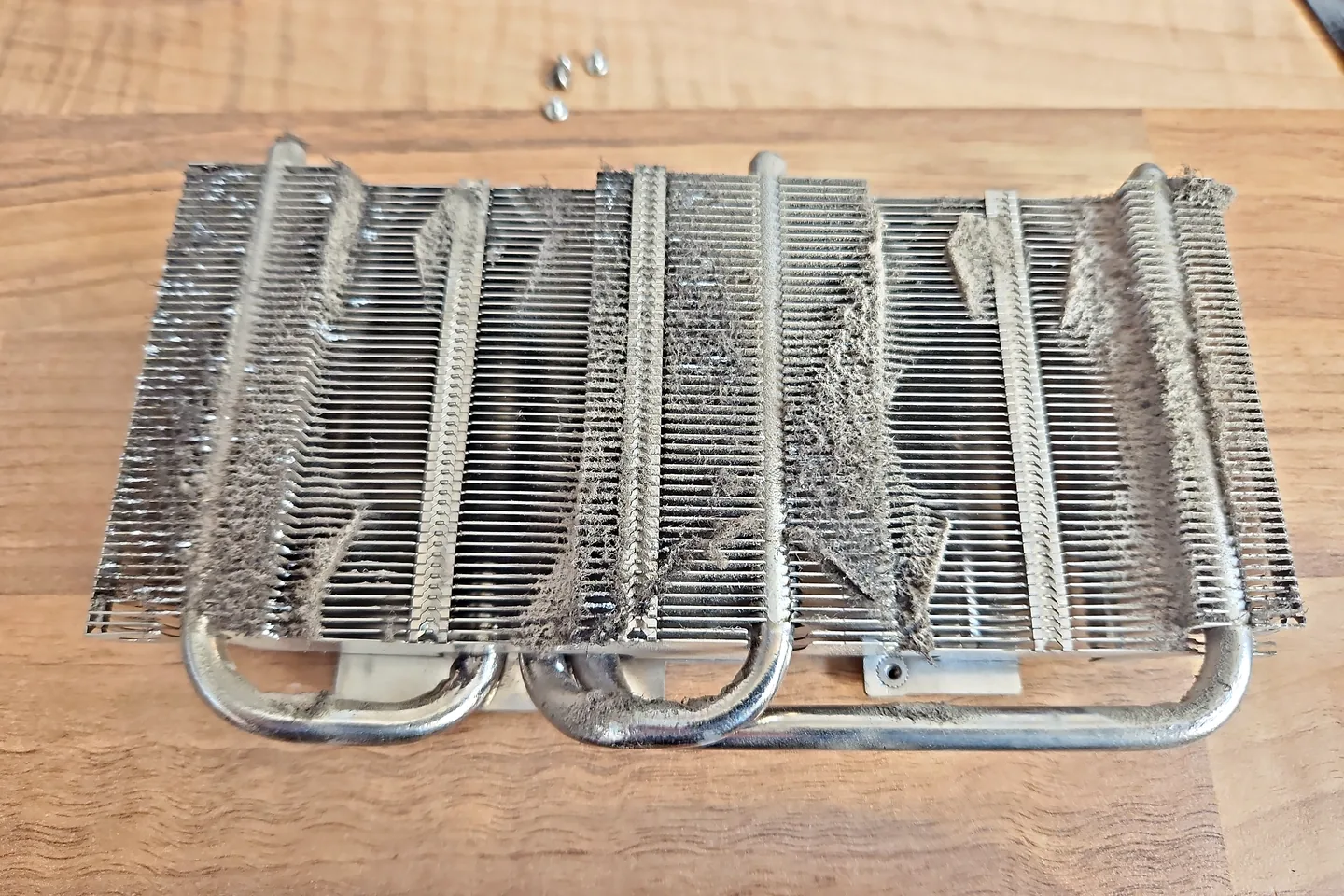
Common signs a graphics card may be failing
The strongest warning sign is not one isolated crash. It is a repeatable pattern that follows the graphics workload or appears across different software and displays.
- Coloured blocks, lines, checkerboards or corrupted textures appear repeatedly.
- The screen goes black when a game or 3D application loads.
- Several different games crash under GPU load.
- Windows reports a display-driver recovery or GPU-related error.
- The system freezes or restarts when graphics power demand rises.
- GPU temperatures climb abnormally or performance drops as the card heats up.
- One or more GPU fans stop, scrape, rattle or behave erratically. If the sound is difficult to locate, use our computer buzzing and unusual-noise guide to separate fan, coil-whine, storage and power-related clues.
- The card disappears from Device Manager or is not detected consistently.
One symptom is not enough to condemn the card. Microsoft documents that GPU timeouts can be associated with driver problems, cooling, system power, overclocking, memory configuration and defective components, not just a dead GPU. Microsoft's VIDEO_TDR_TIMEOUT guidance is useful background for this distinction.
Screen artefacts and corrupted graphics
Artefacts are visual errors such as coloured squares, flashing polygons, random lines or textures that are obviously wrong. They can be associated with GPU or video-memory instability, but the display path should still be proved first.
Try a known-good display cable and monitor where practical. If the corruption appears in the motherboard firmware screen, before Windows loads, a software-only explanation becomes less likely. If it appears only inside one game, test other games or benchmarks before assuming hardware failure.
For a system that powers on but gives no usable picture, follow our PC turns on but no display guide before buying a graphics card.
Gaming crashes, freezes and driver resets
A GPU problem often becomes visible under load because games increase graphics power, memory use and temperature. However, that same workload also stresses the power supply, motherboard and cooling system.
NVIDIA's own troubleshooting guidance for video corruption and crashes recommends looking at software changes, game updates, overclocking and system stability rather than jumping straight to replacement. NVIDIA graphics-card troubleshooting supports that broader approach.
If the fault appears mainly while gaming, our gaming PC repairs in Birmingham page explains the wider stability checks we use for graphics, power, memory and cooling faults.
Black screen or no signal does not automatically mean a dead GPU
If the PC powers on but the monitor reports no signal, the fault may be the display input, cable, graphics output, RAM, power supply, firmware or motherboard. GPU fans spinning only proves that part of the card is receiving power; it does not prove that the GPU has initialized correctly.
| Symptom | Possible cause | Useful first check |
|---|---|---|
| Fans spin, no display | GPU, RAM, power, BIOS or motherboard | Prove the monitor/cable path and check POST clues |
| Artefacts before Windows | GPU/VRAM, cable or monitor | Try another display path and record when corruption begins |
| Only one game crashes | Game files, driver or software conflict | Test other workloads before replacing hardware |
| Crashes after several minutes | Heat, power or GPU instability | Compare temperatures and power behaviour under load |
| GPU not detected in Windows | Card seating, power, BIOS, slot or GPU fault | Check Device Manager and hardware detection |
AMD also advises confirming that the graphics hardware is physically installed and detected by Windows when its software cannot find the GPU. See AMD's GPU detection guidance.
GPU overheating and fan problems
High temperature can reduce performance and trigger instability, but the useful question is why the temperature is high. Dust, blocked case airflow, failed fans, a damaged cooler, old thermal material or excessive power settings can all contribute.
Do not assume every hot graphics card needs to be replaced. First inspect airflow, fans and cooler condition. For broader gaming-system cooling decisions, see our gaming PC overheating guide.
NVIDIA's GPU tools expose GPU temperature, memory temperature and power readings on supported products, which illustrates why diagnosis should compare thermal and power behaviour rather than rely on how hot the case feels. NVIDIA's GPU telemetry documentation describes these readings.
Driver problem or hardware failure?
If the problem began immediately after a driver, Windows or game update, software deserves attention before parts are changed. A clean driver installation can be a useful controlled test when the system is otherwise stable.
NVIDIA documents a clean installation procedure using the official driver package. NVIDIA clean driver installation guidance recommends closing GPU-accelerated and monitoring applications first and using the clean-install option.
Signs that move suspicion back toward hardware include corruption before Windows starts, repeatable failure across multiple operating-system installs or workloads, abnormal temperatures, failed fans, power faults or instability with known-good drivers.
Check the power supply before replacing an expensive GPU
A graphics card can be blamed for a fault that is actually caused by unstable power. Modern cards can draw much more power under gaming load than at the desktop, so a marginal PSU or poor connection may only fail when the GPU is working hard.
- Check that required PCIe or 12VHPWR/12V-2x6 connectors are fully seated.
- Do not mix modular PSU cables from different power-supply models.
- Look for heat damage, discolouration or loose connections.
- Return CPU and GPU overclocks to defaults during diagnosis.
- Use known-good comparison hardware when the symptoms justify it.
Never open a power supply. Internal PSU components can retain dangerous charge even after the PC is unplugged.
RAM and motherboard faults can look like graphics-card failure
RAM instability can cause game crashes, corrupted data and failed startup. A motherboard can create PCIe slot, firmware or power-delivery faults. A CPU with integrated graphics can also help isolate the display path on some systems, but only when the processor and motherboard support it.
If evidence points away from the graphics card, see our motherboard repair in Birmingham service or our main PC repair in Birmingham page for wider system diagnosis.
Safe checks before removing the graphics card
- Back up important files while the PC is stable enough to do so.
- Record the exact symptom. Note the game, error, screen behaviour and whether the fault appears immediately or after warming up.
- Try another cable and display. Eliminate the cheapest part of the signal path first.
- Return tuning to defaults. Remove overclocks and aggressive undervolts during testing.
- Check temperatures and fan behaviour. Compare idle and load behaviour rather than one isolated number.
- Update or clean-install the correct driver only when the system is stable enough for software testing.
- Inspect power connectors with the PC off and disconnected. Do not work inside a live system.
How a graphics card is tested in the workshop
We do not begin with “the GPU is dead.” We begin by reproducing the symptom and separating the graphics card from the rest of the PC.
- Confirm the fault stage. Does the problem happen before Windows, at the desktop or only under graphics load?
- Prove the display path. Monitor, cable and output are checked.
- Check detection and drivers. Device Manager, driver status and relevant Windows logs are reviewed.
- Check temperatures and fan operation. Thermal behaviour is compared with the fault.
- Check system power. Connectors, PSU suitability and load behaviour are assessed.
- Use controlled comparison hardware. Known-good parts are substituted where that is the safest way to isolate the fault.
- Repeat the original workload. A successful desktop boot is not enough if the original failure happened during gaming.
This is the same diagnosis-first approach used on our graphics card repair in Birmingham service page.
Repair or replace the graphics card?
The answer depends on the confirmed failure, card value, warranty, part availability and the expected reliability of a repair.
| What testing finds | More sensible next step |
|---|---|
| Driver/software instability only | Fix the software; do not replace the card |
| Blocked cooler or failed fan | Cooling repair may be worthwhile if parts are available |
| Loose/damaged display connector | Assess connector repair versus card value |
| Power problem elsewhere in the PC | Repair the power fault before condemning the GPU |
| Severe GPU or VRAM failure | Compare specialist repair cost with a reliable replacement |
| Older low-value card with major board damage | Replacement is often the more practical option |
| Card still covered by manufacturer warranty | Use the warranty route before paid board repair |
A good repair shop should be willing to tell you when a repair is technically possible but financially poor value.
Warning signs when buying a used graphics card
- Ask to see the card running under a sustained 3D workload, not only on the desktop.
- Check for abnormal fan noise, missing fans or improvised cooling repairs.
- Look for corrosion, burnt connectors or obvious previous board work.
- Check whether the card is detected correctly and that the expected memory is reported.
- Be cautious when the seller cannot demonstrate the card working.
Used cards can be good value, but a low purchase price is not a bargain if the fault only appears after the card warms up.
When professional diagnosis makes sense
Arrange diagnosis when the PC repeatedly black-screens, artefacts appear across multiple applications, the system crashes under GPU load, connectors overheat, or you do not have known-good parts to isolate the fault safely.
PC Repair Guru provides graphics card repair in Birmingham, gaming PC diagnosis and wider computer repair in Birmingham. The aim is to prove whether the graphics card is actually responsible before money is spent on replacement parts.
Official guidance used for this article
Frequently asked questions
What are the most common signs that a graphics card is failing?
Repeated artefacts, black screens, crashes under graphics load, driver resets and abnormal temperature or fan behaviour are common warning signs. They still need to be separated from PSU, RAM, motherboard, cable and software faults.
Do visual artefacts prove the graphics card is faulty?
No. Test the monitor and cable too. Corruption visible before Windows loads makes a hardware or signal-path fault more likely, but controlled testing is still needed.
Can a bad power supply make a graphics card crash?
Yes. A marginal or faulty PSU can fail when graphics power demand rises, producing black screens, resets or instability that looks like a GPU fault.
Can graphics card overheating cause crashes?
Yes. Excessive GPU or memory temperature can cause throttling and instability. Dust, failed fans, cooler contact and case airflow should be checked.
Should I repair or replace a failing graphics card?
Repair can make sense for cooling, fan, connector or certain board-level faults. Severe GPU or memory failure, low card value or poor repair reliability may make replacement the better choice.
Can PC Repair Guru test a graphics card in Birmingham?
Yes. We can assess the display path, drivers, temperatures, power behaviour and the rest of the PC before recommending graphics-card repair or replacement.
