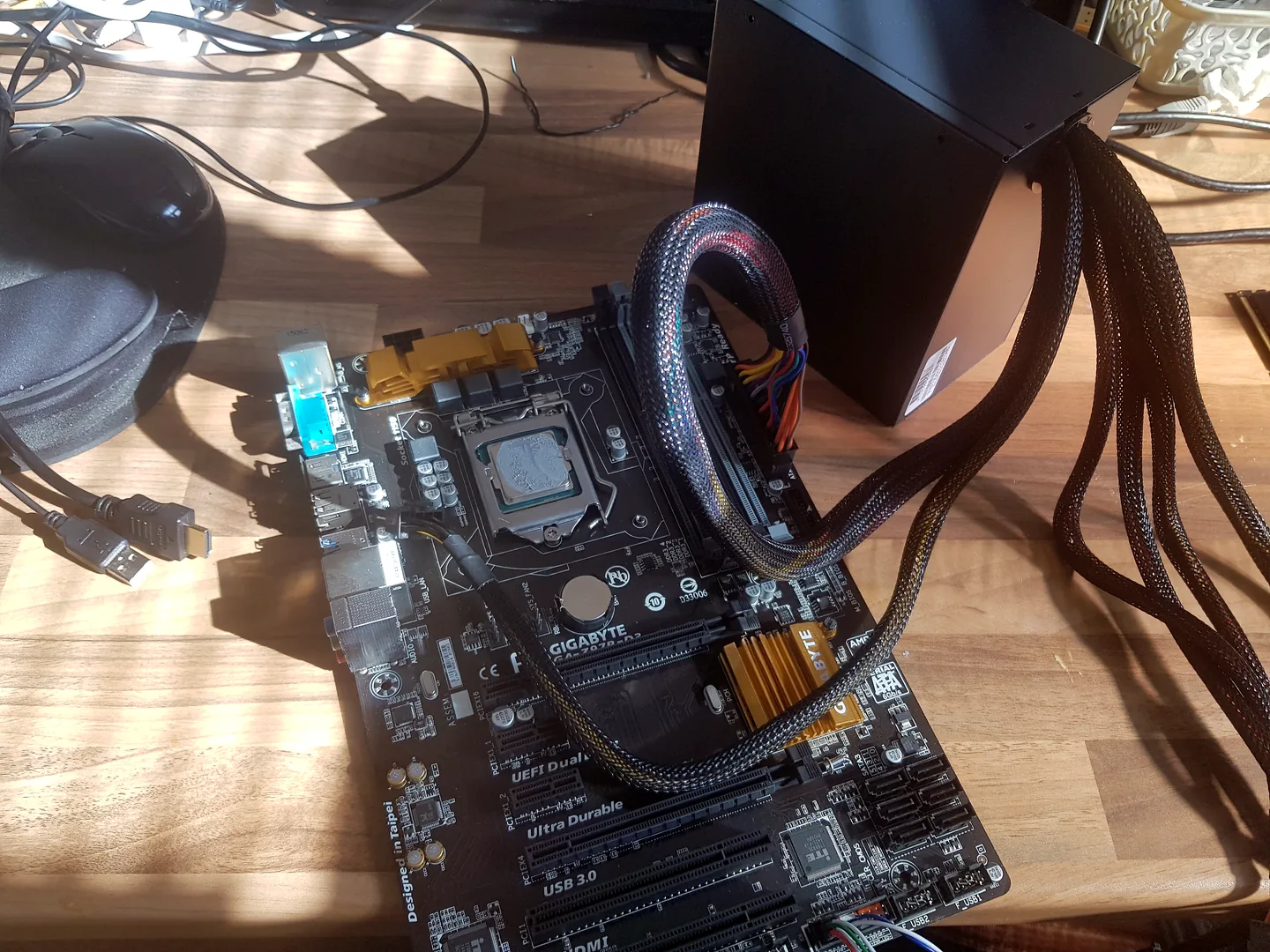

What the message actually tells you
“No Bootable Device”, “Boot Device Not Found”, “Default Boot Device Missing” and similar messages are generated before the normal Windows desktop loads. The computer has completed enough startup to ask its firmware for a bootable operating system, but the expected path is unavailable.
The message does not by itself prove the SSD or hard drive has failed. It also does not prove Windows merely needs reinstalling. Four broad categories can create it:
- The firmware tries the wrong device or a USB device interferes with priority.
- The internal drive is detected, but Windows Boot Manager or boot files are damaged.
- Firmware settings no longer match how Windows and the drive were configured.
- The storage device, connection, enclosure or controller is not detected reliably.
Record the exact screen and recent change
Photograph the message, including any error code and the computer brand. Note whether the error appears every time, after a Windows update, after a BIOS reset, after an SSD upgrade, after the machine was moved, or after a freeze or drive warning.
Listen for abnormal mechanical-drive noise. Note whether the firmware shows the correct model and capacity of the internal drive. If BitLocker asks for a recovery key after a firmware change, do not keep changing settings. Locate the correct key and understand why the security state changed.
These details determine whether the next step belongs in firmware, Windows recovery or data recovery.
Safe first checks that do not write to the drive
- Power down and remove USB flash drives, external disks, memory cards and unnecessary docks.
- Restart once and see whether the message changes.
- Enter BIOS or UEFI using the computer maker’s documented method.
- Observe whether the internal SSD or HDD appears with the expected model/capacity.
- Look for a Windows Boot Manager entry without deleting or recreating it.
- Record boot mode and storage-controller settings before changing anything.
- Run the manufacturer’s non-destructive pre-boot storage diagnostic if the drive is quiet, stable and the data risk is understood.
Do not use a generic video to change SATA/AHCI/RAID/VMD, Secure Boot or UEFI/Legacy settings. The wrong change can make a healthy installation unbootable or trigger BitLocker recovery.
If the drive is missing from BIOS or UEFI
Windows repair tools cannot repair a drive the firmware does not detect. On a desktop, a loose data or power cable, faulty port, storage device or power problem can be involved. On a laptop, an M.2 drive can be poorly seated, incompatible, failed or affected by another board-level issue.
If the device appears only sometimes, reports the wrong capacity, clicks, freezes detection or contains unique files, stop repeated boot attempts. Reinstalling Windows, initialising the drive or running long tests is the wrong priority.
Where data matters, use data recovery in Birmingham before replacement. If the data is verified elsewhere and the drive has failed, replacement and a clean installation may be reasonable after the fault is confirmed.
If the drive is detected consistently
A consistently detected drive with the correct capacity makes boot configuration or Windows startup damage more plausible, but storage health still needs consideration. Check whether Windows Boot Manager appears and whether the computer can reach Windows Recovery Environment.
Microsoft’s Startup Repair is designed to scan for certain startup problems such as damaged system files, boot configuration data and other issues that prevent Windows from starting. It is a reasonable early tool when the storage is stable and the data is protected.
Windows Recovery Environment also offers options such as Startup Settings, System Restore and uninstalling updates. Use the least destructive option that matches the event. A reset or reinstall should not be the first response to every boot-device error.
Boot-device errors after an SSD or BIOS change
After an SSD upgrade, confirm that the new drive was cloned or installed as intended, is compatible with the socket, and contains a bootable Windows installation. An empty new SSD will not boot merely because it is visible in BIOS.
After a BIOS update or reset, boot order, UEFI mode, Secure Boot and storage-controller settings may return to defaults. Restore only settings supported by the original configuration and manufacturer guidance. Do not repeatedly switch modes hoping one will work.
If the old and new drives are both connected, firmware can point to a boot manager on the wrong disk. The final setup should be tested with the intended system drive and boot path clearly identified.
Boot-device error decision table
| Finding | Likely area | Next priority |
|---|---|---|
| Error disappears when USB storage is removed | Boot priority/external media | Correct boot order cautiously |
| Internal drive absent from firmware | Drive, connection, socket, controller or power | Hardware/storage diagnosis |
| Drive appears intermittently | Unstable storage path | Protect data; stop repeated booting |
| Drive present, Windows Boot Manager absent | Boot configuration or wrong firmware mode | Record settings; use supported recovery |
| Drive and Boot Manager present, Windows fails | Windows startup, update or file damage | WinRE and Startup Repair |
| Error began after BIOS reset | Changed firmware configuration | Compare original supported settings |
| Drive clicks or contains unique files | Data risk | Recovery before repair attempts |
Actions to avoid before the fault is classified
- Do not initialise or format a drive that contains files you need.
- Do not reinstall Windows before checking drive detection and backup.
- Do not change several BIOS settings at once.
- Do not clear security keys or Secure Boot configuration without understanding the effect.
- Do not run repeated long storage tests on a clicking or unstable drive.
- Do not assume “Boot Device Not Found” is fixed because one forced restart worked.
- Do not save recovered data back onto the suspect drive.
How a boot-device error is diagnosed
- Record the exact message, error code and recent update or hardware change.
- Separate no POST, no display, no boot and a Windows-only startup failure.
- Check internal-drive model, capacity, stability and health before writing to it.
- Compare boot order, UEFI mode, Windows Boot Manager and storage-controller configuration.
- Protect data and BitLocker recovery information.
- Use Startup Repair or other supported recovery tools only when the storage path is stable.
- Retest cold starts and normal restarts after approved repair or configuration work.
Boot-device and Windows repair help in Birmingham
PC Repair Guru diagnoses “No Bootable Device” and “Boot Device Not Found” errors from the Small Heath workshop. Bring a photo of the message, the charger for a laptop and details of any BIOS, SSD or Windows change.
For operating-system recovery use Windows repair in Birmingham. For the broader startup process read Windows won’t boot: safe checks. If the drive disappears or files are at risk, use data recovery in Birmingham.
We confirm whether the drive, firmware or Windows path is responsible before recommending a reset, reinstall or replacement.
Frequently asked questions
Does No Bootable Device mean my SSD has failed?
Not always. The drive may be absent, unstable or failed, but boot order, firmware settings, Windows Boot Manager and damaged startup files can produce the same message.
Should I reinstall Windows when I see Boot Device Not Found?
Not first. Check whether the internal drive is detected consistently and protect important data. Startup Repair or configuration correction may be appropriate when the drive is healthy.
Why did this happen after a BIOS update or reset?
Firmware defaults may change boot order, UEFI mode, Secure Boot or storage-controller settings. Record the current configuration and restore only the supported settings for the original installation.
Can a USB stick cause a No Bootable Device error?
Yes. Firmware can try external media before the internal Windows drive. Removing non-essential USB storage is a safe first check.
What if the hard drive is clicking with the error?
Stop repeated boots and prioritise data recovery. Windows repair software cannot fix mechanical drive damage.
Can PC Repair Guru fix Boot Device Not Found in Birmingham?
Yes. We check storage detection, firmware configuration, Windows recovery and data risk before recommending the repair route.
Official technical references
These manufacturer and operating-system references support the safe diagnostic principles in this guide. Model-specific procedures can differ, so the correct service manual or support page should be checked before internal work.