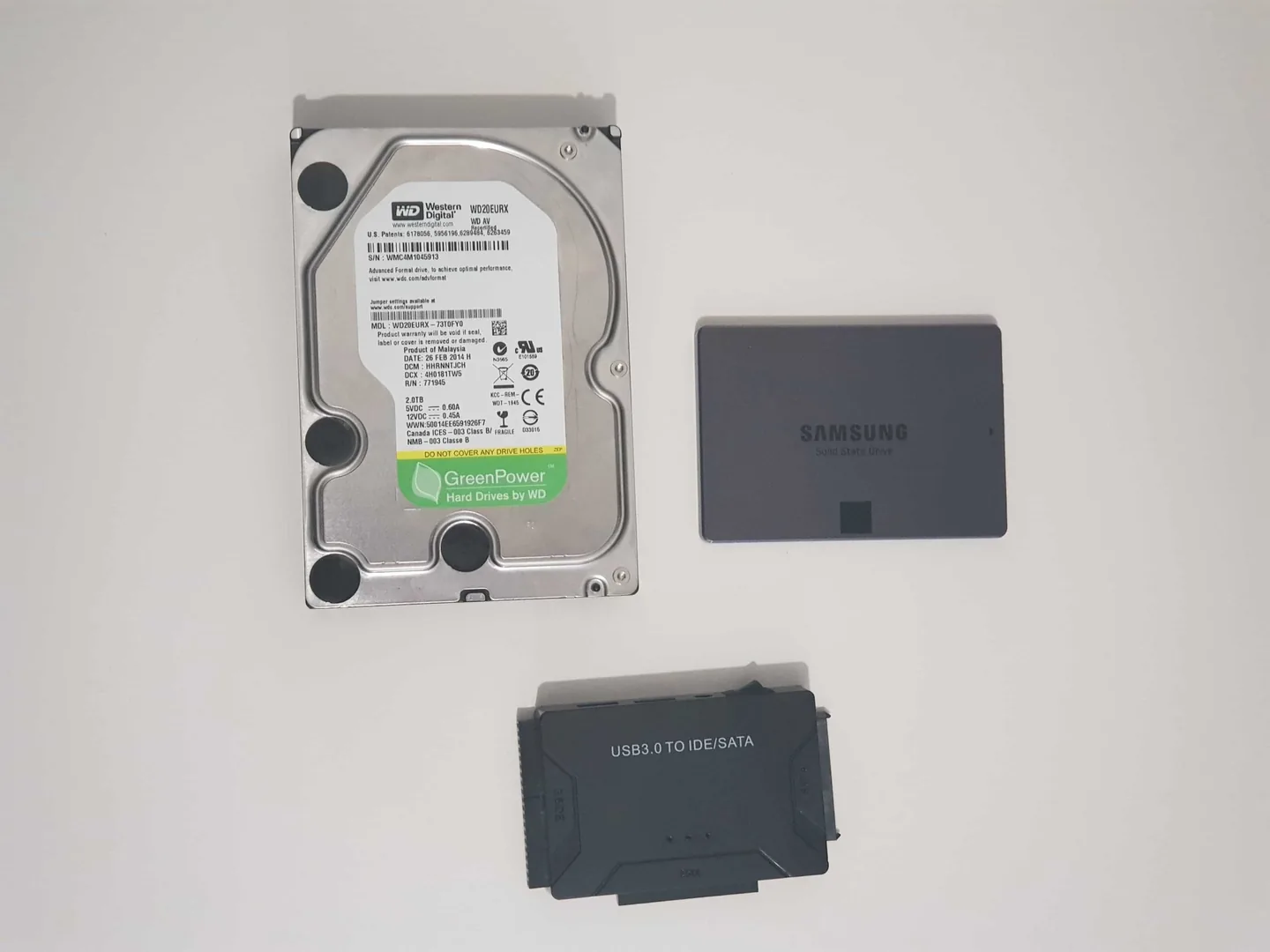

HDD failure and SSD failure are not the same
A hard disk drive stores data on spinning magnetic platters and uses mechanical heads to read and write. A solid-state drive stores data in flash memory and has no moving read/write mechanism. That difference matters because the warning signs can look very different.
A mechanical HDD can make new clicking, grinding or repeated spin-up sounds when there is a physical or power problem. Seagate notes that soft operational clicking can be normal on a functioning drive, while loud, hard clicking can indicate physical failure. An SSD cannot produce head or platter noises because those parts do not exist.
Mechanical HDD
Watch for loud clicking, grinding, repeated spin-up attempts, very slow reads, bad-sector warnings and intermittent detection.
SATA or NVMe SSD
Watch for read/write errors, corruption, SMART or vendor-health warnings, disappearing detection, failed boots and sudden inability to write files.
Windows symptom
Freezing, boot loops and file errors can be caused by storage, but they can also come from RAM, drivers, power or Windows corruption.
Data-first symptom
If the drive contains irreplaceable files and is deteriorating, recovery risk matters more than getting Windows to boot one more time.
Warning signs that deserve attention
No single symptom proves that a drive has failed. The pattern matters. A drive that disappears from firmware, throws repeated read errors and causes freezes during file access is more suspicious than a PC that is simply slow all the time.
- SMART or manufacturer health software reports a warning or critical status.
- The drive intermittently disappears from BIOS, UEFI, Disk Management or the operating system.
- Files become unreadable, copies fail, or saving new data produces errors.
- Windows freezes mainly when opening, copying or searching files.
- Boot time becomes erratic and the machine falls into recovery or “no boot device” messages.
- A mechanical HDD starts making new loud clicking, grinding or repeated spin-up sounds.
- An SSD becomes read-only, stops accepting writes or repeatedly reconnects.
- SMART attributes, diagnostic scans or vendor utilities report media or integrity errors.
These symptoms are reasons to investigate, not instructions to replace the drive blindly. A loose SATA cable, damaged connector, inadequate power or motherboard storage fault can also make a healthy drive disappear.
What SMART can and cannot tell you
SMART stands for Self-Monitoring, Analysis and Reporting Technology. Drive makers use it to expose health and usage information. Seagate states that a SMART error means a threshold has been reached and can predict near-term drive failure. Crucial explains that SMART can provide useful early-warning information for SSDs, but it is not a complete diagnostic system.
There is an important limitation: SMART attributes are not interpreted identically across every manufacturer and model. Crucial specifically warns that third-party utilities can mislabel attributes or apply inappropriate thresholds. Where possible, use the drive maker's own tool, such as Samsung Magician or Crucial Storage Executive, and treat SMART as one part of the diagnosis rather than the entire answer.
A “good” SMART status also cannot guarantee that every file is safe or that the drive will not fail. Conversely, a high lifetime-used counter on an SSD does not mean it will stop at a precise moment. Combine the health data with the actual symptoms and a verified backup.
Does a clicking hard drive mean it is failing?
Not every click is failure. Mechanical drives make normal seek and parking sounds, and some external drives can click because of a cable or power issue. The concern rises when the sound is new, loud, repetitive, accompanied by failed detection, or sounds like repeated hard impacts.
If a mechanical drive suddenly develops loud clicking and the files matter, avoid repeatedly powering it up to “see if it works this time”. Repeated attempts can reduce the chance of a successful recovery when there is physical damage. Do not open a hard drive outside a suitable specialist environment.
An SSD does not contain spinning platters or moving heads, so a clicking sound heard near an SSD is coming from another component, enclosure, relay, fan or power source rather than the SSD mechanism itself.
Can a failing drive make the computer freeze or run slowly?
Yes, but freezing is not specific to storage. If Windows is waiting for a drive to complete a read or write, the system can pause, applications can stop responding and File Explorer can hang. Similar behaviour can come from low memory, driver faults, malware, overheating or a damaged Windows installation.
The useful clue is timing. If the freeze happens mainly while opening folders, copying files, starting applications from one drive or during boot, storage becomes a stronger suspect. Compare that with our computer freezing guide before assuming the drive is the only cause.
What if the hard drive or SSD is not detected?
First separate “not visible in Windows” from “not detected by the computer at all”. A drive can be missing from File Explorer because it has no drive letter, an offline volume, file-system damage or a partition problem while still being detected by the hardware.
If the drive also disappears from BIOS or UEFI, check the connection path before concluding that the storage itself is dead. On a desktop this can include SATA data and power leads. On an M.2 drive it can include seating, socket compatibility and motherboard detection. Intermittent detection is more concerning than a one-off configuration issue.
Do not initialise, format or create a new partition on a drive that contains files you need. Those actions change storage metadata and can complicate recovery.
Safe checks before replacing the drive
- Back up while the drive is stable. If files are accessible and the drive is not making severe mechanical noises, copy the irreplaceable data first.
- Record the symptom. Photograph SMART warnings, “no boot device” messages or diagnostic results.
- Confirm detection. Check whether the drive appears in BIOS/UEFI and Windows Disk Management without changing partitions.
- Check the connection. On a desktop, inspect power and data connections. If safe, test a known-good cable or port.
- Use the manufacturer's health tool. Where supported, check SMART status, drive health and firmware with the correct vendor utility.
- Avoid heavy write tests when data matters. Benchmarks, repair scans, reinstallation and repeated cloning attempts can add stress or writes.
- Do not reinstall Windows as a diagnosis. A fresh installation cannot repair failing media or an unstable connection.
When should you stop using the computer?
Stop normal use and prioritise data recovery when a drive containing important files is rapidly getting worse, making loud hard clicks, repeatedly disconnecting, producing serious read errors or failing to stay detected long enough to copy data. Continuing to boot, update Windows or run disk-repair tools can be the wrong priority.
For important business, family or customer files, tell the technician that the data is the priority before any repair is attempted. Our data recovery service in Birmingham separates recovery work from routine Windows repair and SSD replacement.
Hard-drive and SSD symptom decision table
| Symptom | What it may mean | Safer next step |
|---|---|---|
| Loud hard clicking from an HDD | Mechanical or power-related drive problem | Stop unnecessary use if data matters |
| SSD gives SMART/health warning | Wear, media or integrity threshold may be reached | Back up and verify with vendor tool |
| Drive disappears intermittently | Drive, cable, socket, power or controller issue | Check detection path before replacement |
| Files fail to read or save | Media, file-system or connection problem | Protect data and diagnose |
| Windows will not boot | Storage, boot files, update or other hardware | Confirm drive health before reinstalling |
| PC is only slow | Storage may not be the cause | Measure startup load, RAM and drive health |
| Drive is healthy but too small/slow | Upgrade opportunity | Consider an SSD upgrade |
How storage faults are diagnosed
- Confirm whether the symptom is storage-related or a wider Windows, RAM, power or motherboard problem.
- Check BIOS/UEFI detection and the physical connection where appropriate.
- Read SMART or manufacturer health information without treating one number as a complete diagnosis.
- Assess data importance before destructive tests, reinstallations or replacement.
- Test the drive and connection using the least risky method appropriate to the fault.
- Explain whether recovery, cloning, SSD replacement or a different repair route makes sense.
- After replacement, verify detection, operating-system stability and any agreed data transfer.
Hard-drive, SSD and data-recovery help in Birmingham
PC Repair Guru provides computer repair in Birmingham from an appointment-only Small Heath workshop. If a drive is clicking, disappearing, reporting health errors or holding important files, tell us the exact symptom and whether the data is backed up.
If the drive is healthy but the computer is simply held back by slow storage, see our SSD upgrade service in Birmingham. If Windows will not start, our Windows won't boot guide explains how to separate a boot problem from failing storage.
Frequently asked questions
Can an SSD fail without warning?
Yes. SMART and vendor tools can provide useful health information, but no monitoring system guarantees advance warning for every failure. Keep important data backed up.
Does a clicking noise always mean a hard drive is dead?
No. Some soft operational clicking can be normal and external-drive power issues can also cause clicking. Loud, repetitive hard clicking with failed detection is more concerning.
Should I run CHKDSK on a drive that is failing?
Not automatically. If the drive is physically unstable or the data is important, protect or recover the data first. Repair utilities write to storage and are not a substitute for a recovery plan.
Can a failing SSD cause Windows to freeze?
Yes. Storage read/write problems can make Windows and applications pause, but freezing can also come from memory, drivers, overheating and other faults.
Should I replace an HDD with an SSD?
If the old drive is healthy enough to clone or the data is backed up, an SSD can improve responsiveness. Compatibility, capacity and data-transfer requirements should be checked first.
Can PC Repair Guru check a failing drive in Birmingham?
Yes. We can check detection, storage health and the wider PC before recommending recovery, replacement or another repair route.