
What can cause this problem
Several faults can create the same symptom. The list below is a starting point for diagnosis, not a reason to order parts without testing.
- Slow mechanical hard drive
- Storage almost full
- Failing source drive
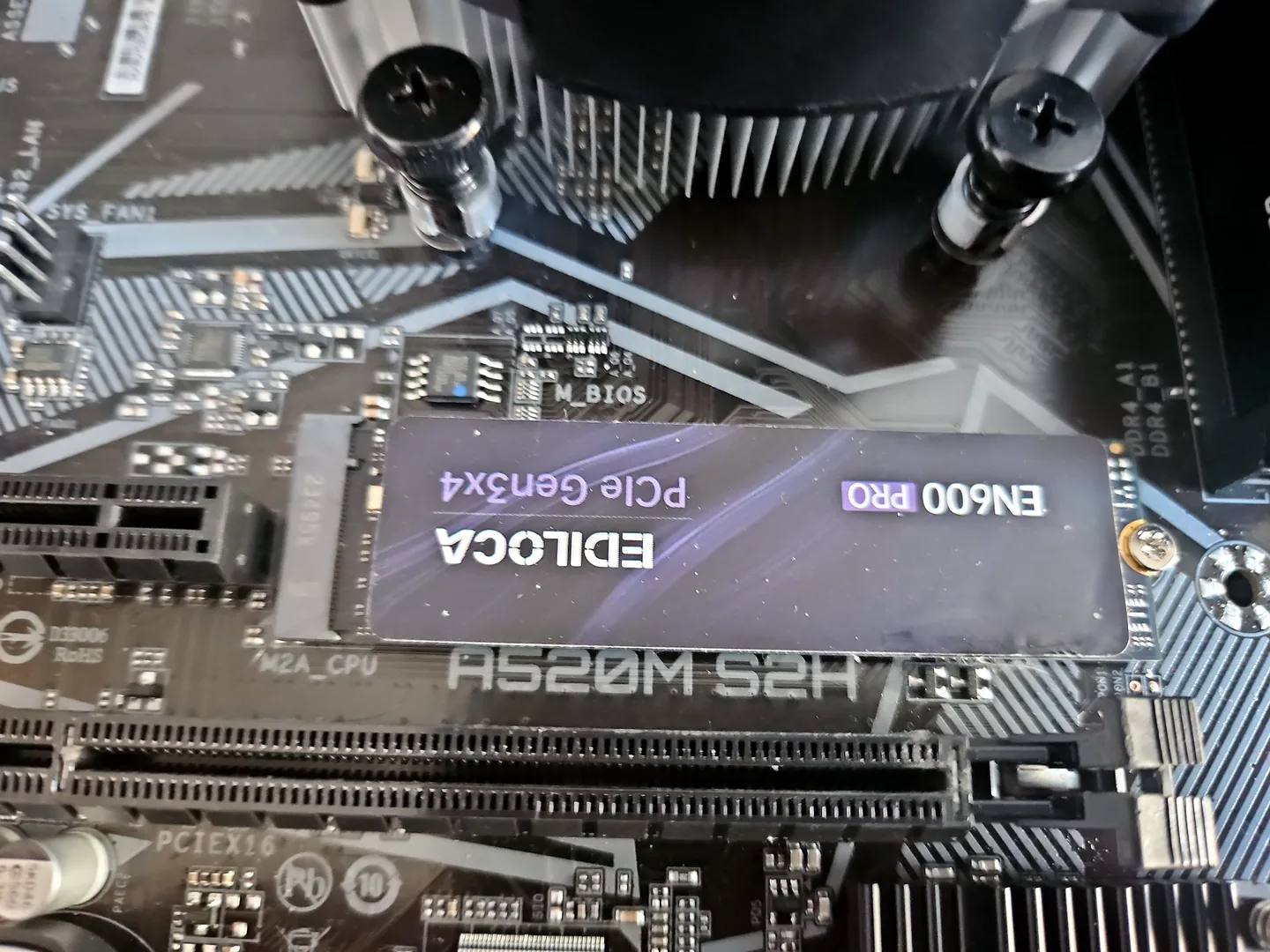
- Unsupported or wrong SSD interface
- Insufficient capacity for cloning
- Windows or software problems unrelated to storage
Safe checks before repair
Protect important files first where the device remains stable. Stop after liquid, smoke, battery swelling, burning smells or signs of a failing drive.
- Identify the computer model or motherboard
- Check the current drive interface and physical size
- Review drive-health warnings
- Calculate used space and required capacity
- Back up important files
- Decide whether cloning or clean setup is better
Possible repair routes
The correct route depends on the confirmed cause, exact model, data requirements and whether a reliable repair remains economical.
- SATA SSD installation
- NVMe or M.2 upgrade
- Clone from a healthy source
- Clean Windows installation
- Data transfer or recovery from an unstable source
What changes the quote
A headline price cannot account for every model, part and level of damage. These are the main factors that need confirmation.
- SSD capacity and type
- Adapter or mounting needs
- Cloning versus clean installation
- Source-drive health
- Software and data-transfer time
An SSD does not resolve every memory shortage. Compare the RAM upgrade checks when performance drops mainly during multitasking.
Frequently asked questions
Is NVMe always better than SATA?
NVMe can be faster, but the computer must support it and everyday benefit depends on workload.
Can you clone everything exactly?
Often, when the source is healthy and the destination is suitable. Some encryption, errors and partitions need extra handling.
Will an SSD fix Windows problems?
Not automatically. A clean setup or Windows repair may still be needed.
Can an old laptop use an SSD?
Many can use a SATA SSD, but model, interface and software support should be checked.
If you are considering an SSD only because the laptop feels slow, first use our slow laptop bottleneck guide to check whether storage, RAM, temperature or Windows is actually limiting performance.


