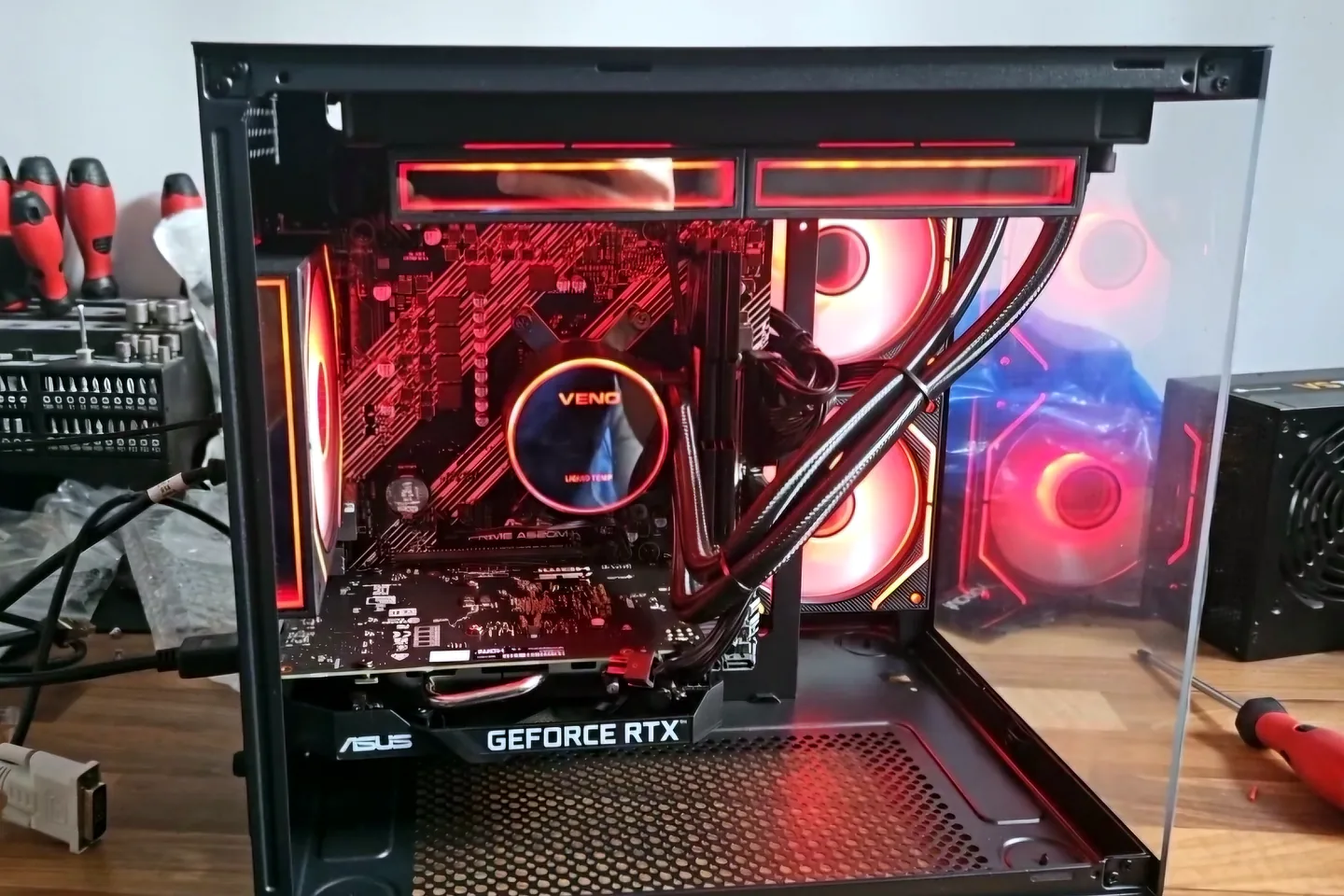

Define exactly what became worse
“Underperforming” is too broad for a diagnosis. Record the precise change:
- Average FPS is lower in the same game and settings.
- Frame-time spikes or stutter increased even if average FPS looks similar.
- Boot time is longer or the PC trains memory on every start.
- Games crash, the machine restarts or a blue screen appears.
- Fans are louder, temperatures are higher or processor clocks fall.
- The upgrade is not detected at its expected capacity or speed.
- One application improved but another became slower.
Use the same resolution, game version, scene, power profile and background applications for comparison. A new game patch or changed graphics preset can invalidate a before-and-after result.
Compatibility is more than whether the part physically fits
Check the motherboard support list, BIOS version, processor generation, memory type, storage interface, physical clearance, power requirement and operating-system support. A component can fit into a socket yet run at reduced capability or not be supported in the installed firmware.
For memory, capacity, rank, module count and slot population affect training and supported speed. For M.2 storage, the socket may support SATA, NVMe, both or share lanes with another port. For a processor or cooler change, mounting hardware, fan/pump headers and BIOS support matter.
Do not rely only on an online configurator. Confirm the exact motherboard revision and component part number against primary manufacturer documentation.
Recheck every connection disturbed during the upgrade
- Main 24-pin and processor power connectors fully latched.
- All required component power plugs installed with the correct PSU cables.
- No modular cable reused from a different PSU model.
- Memory modules seated evenly in the recommended slots.
- Storage devices fully inserted and secured without bending.
- CPU cooler and any pump connected to the correct headers.
- Display cable connected to the intended output for the system configuration.
- No loose screw, misplaced standoff or cable interfering with a fan.
Power down, switch off and unplug before internal inspection. Follow electrostatic precautions and the case, board and component manuals.
BIOS defaults can change performance and stability
A BIOS update, cleared CMOS or new processor can reset memory profiles, fan curves, boot order, resizable features, storage settings and power behaviour. First confirm that the firmware identifies the new component correctly and that temperatures/fan reporting are sensible.
Start from supported defaults. Do not apply an old saved overclock profile to a different hardware configuration. AMD’s stability guidance recommends returning the system to factory defaults, including processor, memory and graphics settings, when isolating instability.
Update BIOS only when the release supports the hardware or addresses a relevant issue, and only with stable power and the exact motherboard file. Record BitLocker recovery information before firmware changes.
Memory capacity, channel layout and profiles can change gaming results
A RAM upgrade can increase capacity yet reduce performance if modules are installed in the wrong slots, run in a less effective channel configuration, train at a lower default speed or become unstable under an unsupported profile.
Check the capacity and speed reported by BIOS and Windows. Compare the board manual’s recommended slot population. Crucial’s installation guidance notes that systems can fail to boot when modules are not fully seated and that some systems require matched bank population.
XMP and EXPO are performance profiles, not guarantees that every processor, board and module combination will be stable at the advertised setting. Test the supported default baseline first, then enable a profile only when the platform documentation supports it and stability can be verified.
A faster component can expose cooling or power limits
A new part can draw more power, place more sustained load on the processor, or add heat inside the case. That can reveal an underspecified PSU, poor cable connection, restricted airflow or a cooler that was disturbed during installation.
Monitor temperature, clock, power and fan behaviour under the same repeatable workload. Do not judge cooling from idle temperature alone. If the system restarts, cuts power, smells hot or shows unstable voltages, stop repeated stress tests.
Calculate power requirements using the component and PSU manufacturers’ guidance, with attention to connector type and transient behaviour. Wattage printed on a PSU label is not the only measure of suitability; model quality, age, rail design and correct cabling also matter.
Windows and drivers should match the new hardware
- Install chipset, storage, network and other relevant drivers from the motherboard/system or component manufacturer.
- Confirm Windows recognises the expected processor cores, memory capacity and storage devices.
- Review Device Manager for errors without using third-party driver-updater tools.
- Remove obsolete utilities that apply old fan, lighting or overclock settings.
- Check power mode, startup applications and security scans that may affect benchmark consistency.
- Verify game files and test more than one workload.
A clean Windows installation can be useful after major platform changes, but it should not be used to hide an unstable hardware configuration. Protect data and activation/licence information first.
Post-upgrade performance decision table
| Finding | Possible reason | Next check |
|---|---|---|
| New RAM shows correct capacity but low speed | Default profile, slot layout or platform limit | Check BIOS and board manual |
| PC loops after memory upgrade | Training, seating, compatibility or unstable profile | Return to supported baseline |
| Temperatures rose after CPU/cooler work | Mounting, paste, fan/pump or case airflow | Inspect and compare load behaviour |
| Games stutter but benchmarks are stable | Game settings, shader/cache, storage or software | Compare another game and frame times |
| PC restarts under load | Power, heat, memory or instability | Stop repeated stress; isolate methodically |
| New SSD is not visible | Socket type, lane sharing, seating or formatting state | Check firmware detection before Windows changes |
| Only monitor smoothness seems worse | Refresh rate or display setting reset | Verify Windows and monitor configuration |
How an underperforming upgrade is diagnosed
- Document the old parts, new parts and exact before-and-after symptom.
- Confirm compatibility, firmware support and correct physical installation.
- Return tuning and memory settings to a stable supported baseline.
- Check power connections, cooler/fan operation, temperature and event history.
- Verify memory channel/speed, storage detection and manufacturer drivers.
- Reproduce the same game or benchmark and log frame time, clocks, temperature and utilisation.
- Change one factor at a time, then repeat the comparison after approved work.
The right result may be correcting the installation or settings, not selling another upgrade.
Gaming PC upgrade diagnosis in Birmingham
PC Repair Guru checks gaming PCs that became slower, noisier or unstable after an upgrade from the Small Heath workshop. Bring the complete tower, old parts where available, the component boxes/cables and details of BIOS or Windows changes.
Use gaming PC repair in Birmingham for performance and stability faults. Planned component work is covered by computer upgrades in Birmingham. General tower startup, cooling and power faults can be assessed through desktop PC repair.
We test the installed configuration and explain the bottleneck before recommending another part.
Frequently asked questions
Why is my gaming PC slower after adding more RAM?
The modules may be in the wrong slots, running at a lower default speed, using a less effective channel layout, mixed incompatibly or unstable under an XMP/EXPO profile.
Should I enable XMP or EXPO after a memory upgrade?
Only when the board, processor and memory support it and the system is stable. Start from a supported default baseline, record settings and test before relying on the profile.
Can a BIOS update reduce performance?
A BIOS update or reset can restore defaults for memory, fan, power and other settings. It can also improve hardware support. Compare the documented configuration rather than assuming the update itself is faulty.
Why does my PC restart only after an upgrade?
A disturbed connection, unsuitable PSU/cable, unstable memory, cooler problem, compatibility issue or driver/configuration change can appear only after the new hardware increases load.
Should I reinstall Windows after every hardware upgrade?
No. Many upgrades do not require it. A clean installation may help after a major platform change or persistent software conflict, but hardware stability and data backup should be confirmed first.
Can PC Repair Guru diagnose a slow gaming PC after an upgrade?
Yes. We verify compatibility, installation, BIOS, memory, power, cooling and repeatable performance before recommending more hardware.
Official technical references
These manufacturer and operating-system references support the safe diagnostic principles in this guide. Model-specific procedures can differ, so the correct service manual or support page should be checked before internal work.